Tuna Demirdöğen's blog

Writing blogs since 2026…

Blog

  • CENG469: Under The Wather

    I began this homework by reading my blogpost about the last one. It appears I didn’t do enough proofreading with it so it’s full of grammar and spelling errors. I’ll do better this time.


    Looking Back

    Before starting the implementation of this homework’s tasks I decided to improve some things from the 2nd homework.

    First was the dynamic tesselation system that was prone to oscillating. I fixed it by considering a 5 frame average for the target frame time, keeping track of actual render time separately from frame time and also considering model upload times. I capped the max auto increased ratio to the 3rd one as higher values don’t look substantially better. I also fixed the distance based tesselation and enabled it by default. Its density wasn’t a peak like I intended but a valley. Now it provides a slight increase in triangle count for nearby geometry and virtually same looking far geometry.

    Second was black screens that occurred randomly and only on my desktop. The screen blackout would only occur on some launches of the executable and only when a particular part of the map’s eastern border was in view, and on those launches the eastern border would be otherwise corrupted as well. This was difficult to debug since I couldn’t replicate it consistently, but eventually I figured out that the last 3 rows of coordinates were out of the bounds of the spline array so the garbage data was causing issues. I think the “only occurs on my desktop” part was because of Nvidia.

    I wanted to remove the lined look of my waves. I parameterized my shader and added sliders in imgui. I got a bit carried away and came up with a scheme with 2 wave families each containing 34 waves of decreasing power and size but increasing speed for turbulence. I also adjusted the colors and the waves started looking nicer.

    Cubemaps

    The first thing I wanted to do implement was the cubemap functionality. While messing around with the above parts I had discovered that the environment map I used would ‘flip’ horizontally way before the FOV reached 180 degrees. This, alongside the slight parallax made me suspicious that the implementation was wrong. So I decided to import a pregenerated cubemap to compare. For this I split the TextureGL struct into two, with one handling the stbi image import and the other uploading that to the gpu. Then I created a CubemapGL struct that creates a cubemap from a directory containing 6 face images. I used the hdri to cubemap github page to convert one of the maps to a cubemap and placed the images into the directory.

    Before changing the environment render stage to use cubemaps however, I decided to mess around with the environment shader to see if I could fix it. After a long time debugging and asking LLMs without success, I realized during a break that although the FOV value used in raster is the field of vertical view (FOVy), this did not imply the existence of an FOVx. FOVx can be calculated, but it’s not used. I was making the mistake of using the aspect ratio as the ratio of FOVs, while it’s the ratio of the tangents of the FOVs. After fixing that on all 3 of the environment shaders, the main one looked perfect and the flaws of the second one became even more apparent.

    I moved on to writing the cubemap based environment mapping stage. I copied the existing vertex and fragment shaders and changed them to fit the shaders in the slides. It took me a while to correctly pass the vertices of a cube to the vertex shader, and even longer to figure out that my near plane was at the same distance as the cube; but eventually I managed to get the cube to display. However for reasons unknown the side faces of the cube were upside down. I decided to swap the top and bottom faces and flip the whole cube over to fix this.

    I wrote the function to generate a cubemap using the existing environment mapping shader, changed the existing shaders to use the cubemap for environment mapping instead of hdri, and finally implemented the function to display the cube map. I had some initial difficulties with drawing the cube but eventually I got it working.

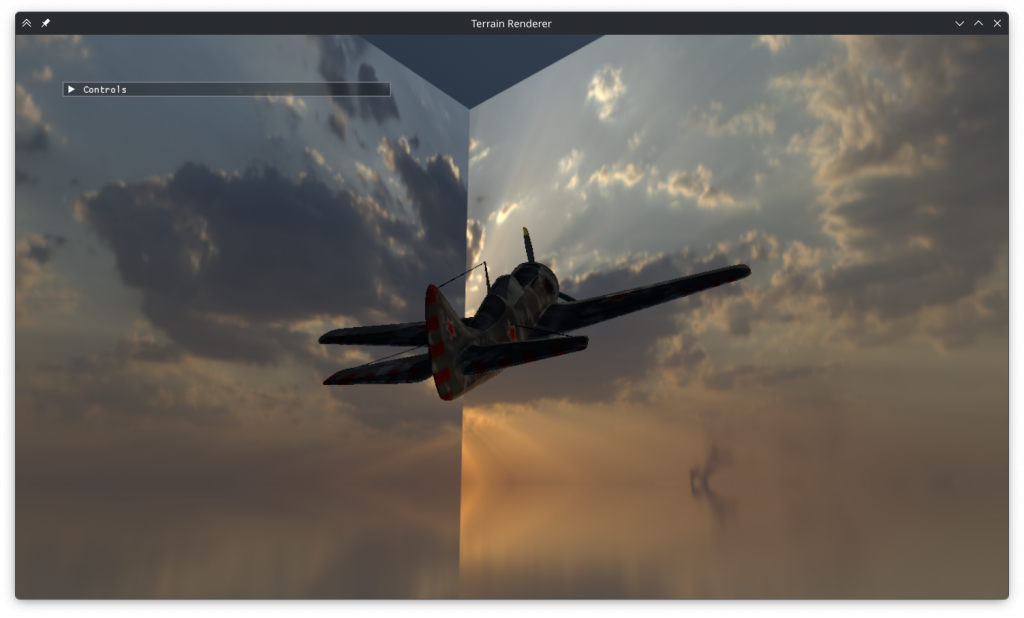
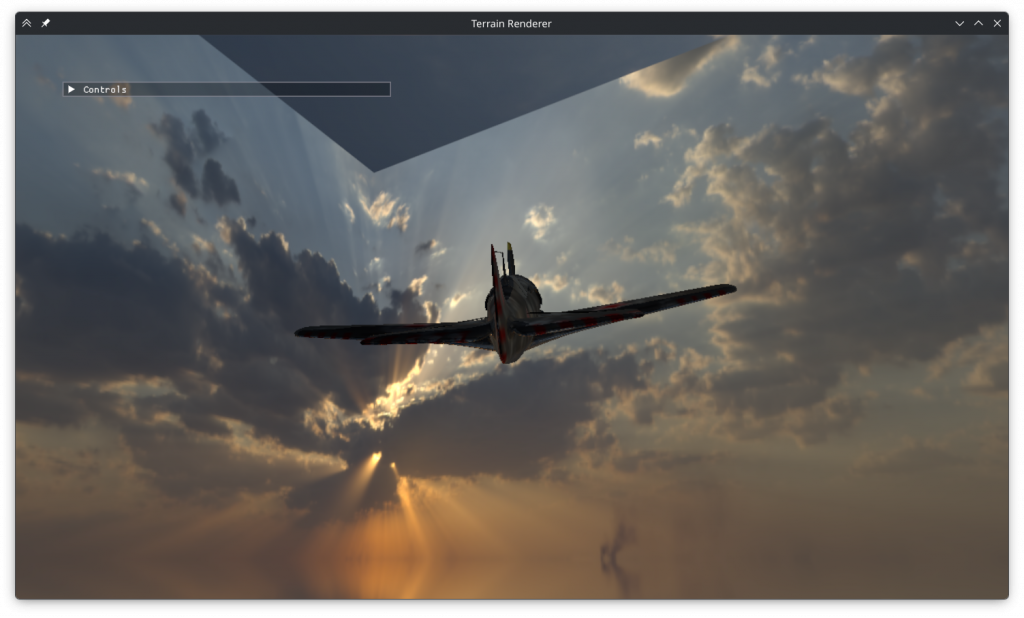
    I tried displaying my old environment shaders using the cubemap as well. When rendered into a cube map, my second shader is discontinuous on all edges.

    My first shader is surprisingly only discontinuous on the top and bottom.

    Clouds

    I moved on to implementing the clouds. I added a new clouds fragment shader that’s run in a second pass during the cubemap generation. Initially I tried using sine waves to generate the clouds like I did the water waves but this resulted in a fabric weave like look instead of clouds. So I implemented a Perlin noise based solution based on the course slides. I had some initial problems regarding negative coordinates and enabling alpha blending but eventually generated some semblence of clouds.

    Next was picking the right parameters. To see the clouds easily I set the cloud color to dark grey. I ruled out using prime octaves as it caused overly smooth clouds and ruled out a second noise pattern as it didn’t improve the results. I tried adding a cloud height parameter that scaled down the cloud magnitude by its distance to a desired y value but I couldn’t make it work. Instead increasing the y frequency produced the flat looking clouds I desired.

    Trying different octave counts I found that higher numbers generally looked better but the differences became unnoticeable by 10. I wanted the clouds to have volume to them so I implemented the option to take multiple samples along the view direction. Just like the octave count I observed diminishing returns with sample counts above 10, but high values also caused haziness so I kept it at 6.

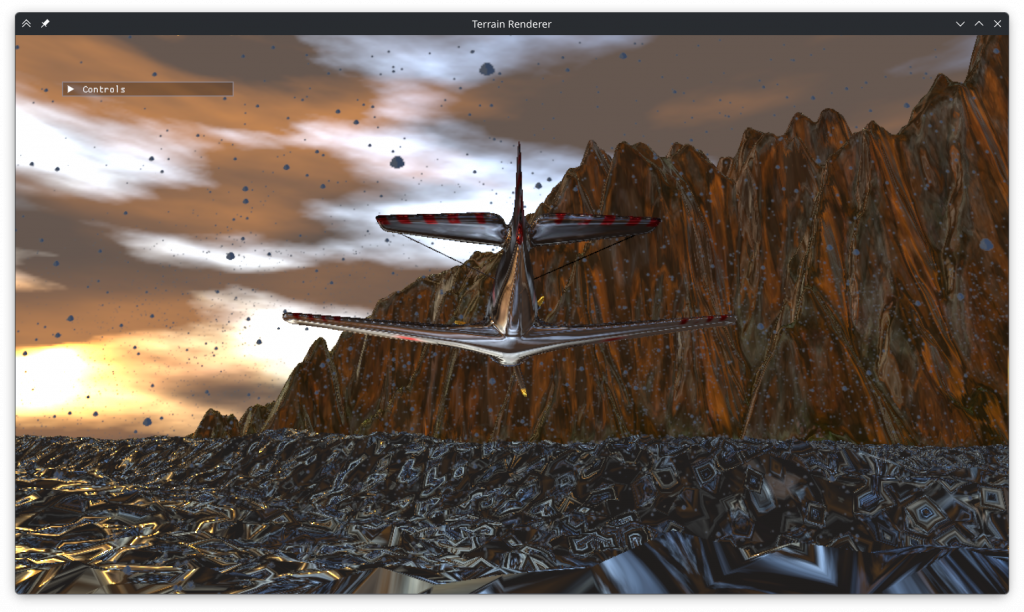
    I found that octave scaling (the magnitude decrease rate of larger octaves) numbers between 0.3 and 0.7 produced the best results. Interestingly, the clouds generated by values below and above 0.45 seemed almost complementary in the areas of the space they filled. The values below 0.45 resulted in smooth, hazy clouds while values above 0.45 resulted in ragged clouds. I decided on a value of 0.47, best of both worlds.

    0.368
    0.639
    0.47

    For sample scaling I observed that values below 0.5 caused the additional samples to make no difference while high scaling values caused a hazy look. I settled on 0.74.

    I wanted the clouds to have more volume, so I added a field to TextureGL that holds the sun direction (calculated during import), and used that to cast sun rays. The sun rays work by casting a ray towards the sun from each sample and subtracting the sun ray cloudiness value from 1 to get illumintaion. This illumination is multiplied by the cloudiness at the sample position, scaled down by the cloudiness of earlier samples and added to the total brightness of the ray. Although I thought this was a good scheme I could not get the sun rays to produce the image I wanted. Instead of illuminating the sun-facing side of every cloud, this resulted in randomly shaped bright areas. It is possible that I made an error in the implementation, and it’s also possible that the system could have worked if I had added non linear scaling or early termination.

    I tried to create an effect where the sun’s intense brightness punches through cloud cover with a halo effect but this was once again not successful.

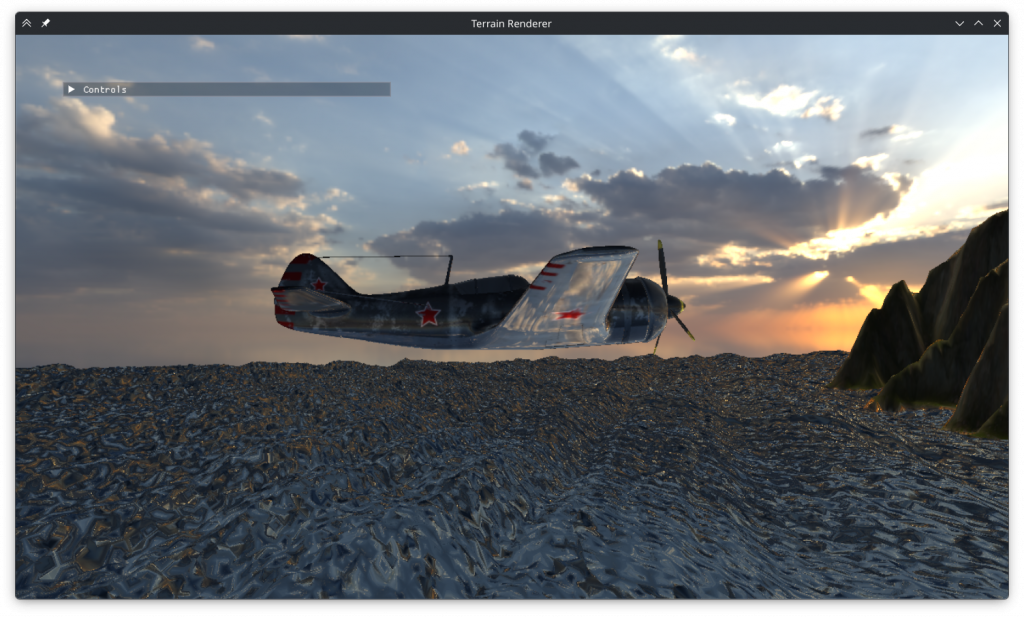
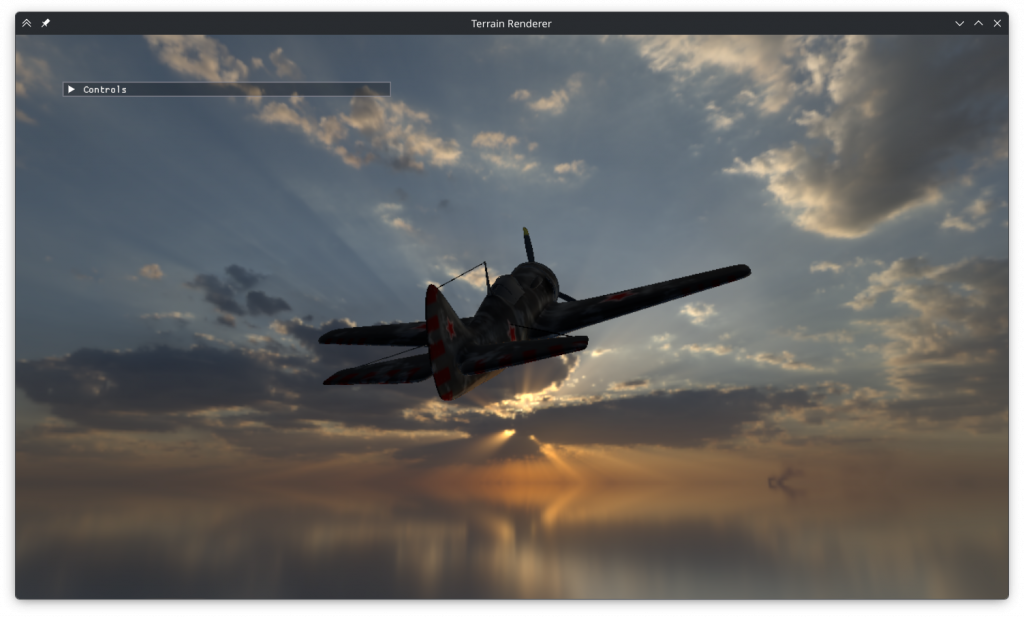
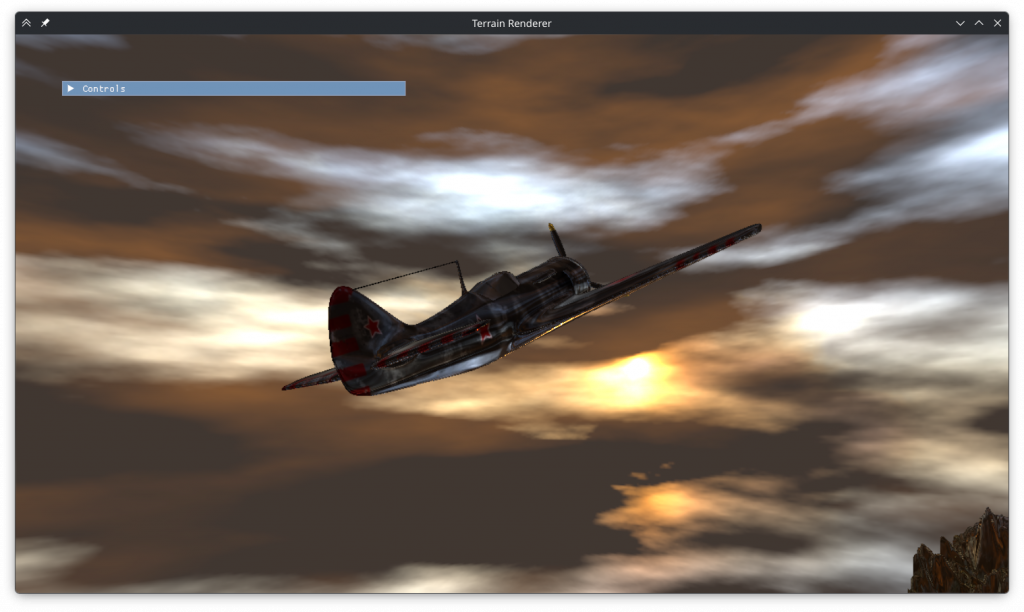
    I decided to keep the dark clouds as I wasn’t sure how to color correct bright clouds and dark ones would make more sense as storm clouds. I decreased the target exposure to match the gloomy look I wanted and changed the illumination of the terrain to match the illumination of the plane. This made it look metallic but it was worth it to make the brightnesses match. I also added color to the sun illuminated areas, and that made it look like the sun was reflecting off the clouds.

    Final clouds

    Rain

    My final task was adding rain. I created 4 new shaders for rain rendering: compute, vertex, geometry and fragment. To import the geometry shader I added it to the enum options of the ShaderGL struct. Remembering that compute shader isn’t a part of the graphics pipeline I created a ComputeGL struct that imports it in a standalone fashion. I included all the shaders and the texture in a Rain struct.

    First shader I wrote was the compute shader. I created an ssbo, populated it with random particle positions and uploaded it to the gpu. Although its syntax was a bit confusing I eventually managed to add it to the compute shader as well. Unfortunately, I discovered that calling glUseProgram on the compute shader caused an error that stopped anything from getting displayed. I decided to fix this later so after writing the internals of the shader to handle movement, state change and respawning I commented it out.

    The vertex shader to access the ssbo and pass on the vertex data was quick to write. The geometry shader was also simple and although it gave some compilation errors regarding default inputs and outputs those were also quick to fix. Finally I wrote the fragment shader to display the rain texture, scaling its x axis to 0.25 and shifting it by the state integer passed onto it all the way from the vertex shader. I tried rendering the raindrops without animating them with the compute shader, but I discovered that even that didn’t work. Having the geometry shader in the code at all was erroring out the program.

    So it was time for the hard part: debugging. I began with the compute shader, debugging every step of its import process. After trying many random things I eventually discovered that it didn’t break the program if it was run as a part of the graphics pipeline via glUseProgramStages. The geometry shader didn’t budge to changing random things in the code. The way it errored out was also strange, as the error wasn’t happening immediately after it was used or after the draw call. I found via renderdoc that it remained in the pipeline after the rain pass was over and caused issues with other render passes. Unbinding it at the end of the pass fixed the problem.

    Now I could get something to display, but the rain was nowhere to be found. So I got rid of the view / projection matrices, limited vertex coordinates to 0-1 and disabled texture mapping to get the pass to display anything. After fixing the order of the generated vertices a square finally showed up. And a square was all I got, the rest were missing. The cause was passing an ssbo pointer pointer to the glBufferData function instead of the pointer itself. Reverting the matrix changes, now I had a grand total of.. 8 squares out of the 11 I was trying to display, and 3 of them were at the wrong positions. Debugging this was also very difficult, but eventually I realized looking at renderdoc that the alignment of glm::vec3 and GLSL vec3 were different.

    With everything working I increased the particle count, enabled the compute shader, enabled texture mapping and added the code to make the squares always face the camera in the x-z plane. The textures were too bright without shading so I multiplied the colors by 0.003. The rain was seemingly working, but something was wrong with the splash animation. It wasn’t triggering where it should and it was triggering where it shouldn’t. So I opened the program in renderdoc and found that the depth buffer was entirely white. I investigated the cause, but upon closer inspection the closest parts of the plane had depth values as low as 0.997, so not entirely white. Thinking that this was a depth precision issue I tried various schemes to make the drops not collide with the cubemap but all was to no avail. In the meantime I fixed some issues regarding perspective divide and ndc conversion. The problem turned out to be caused by reading from a renderbuffer as if it were a texture.

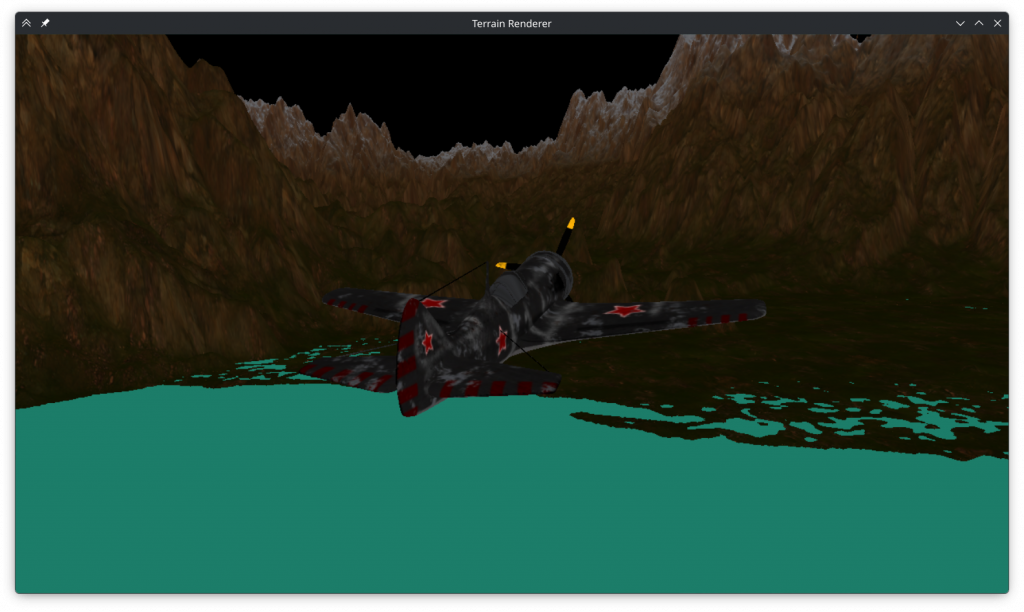
    After fixing all the bugs and changing some of its parameters as well the rain looked good.

    Performance

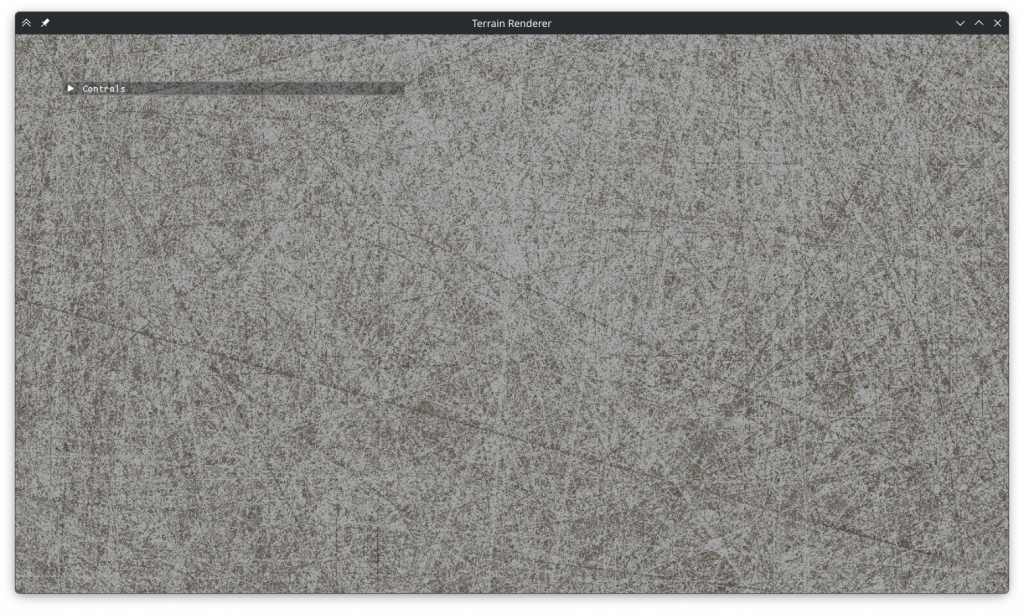
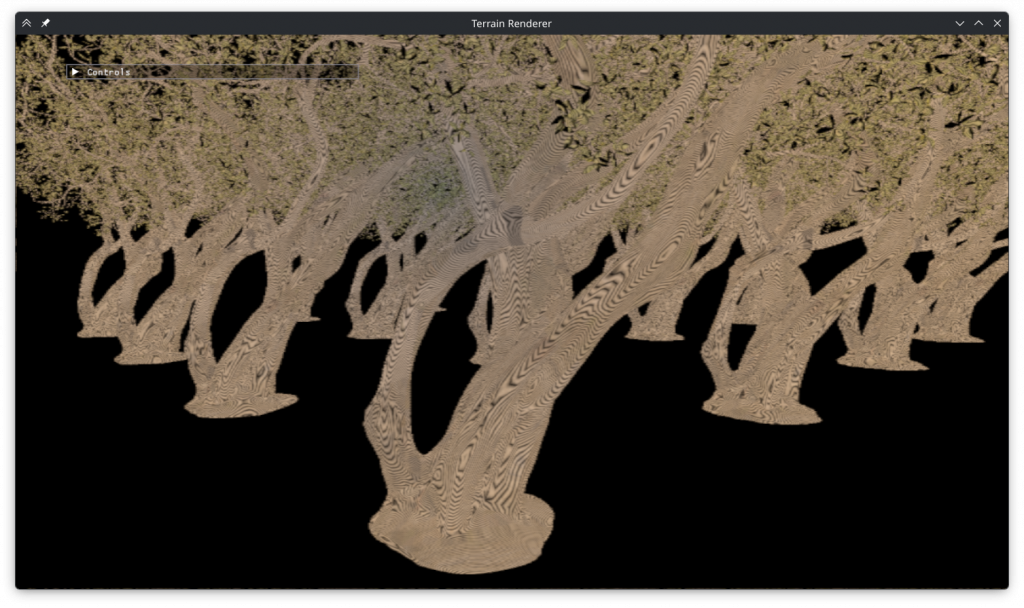
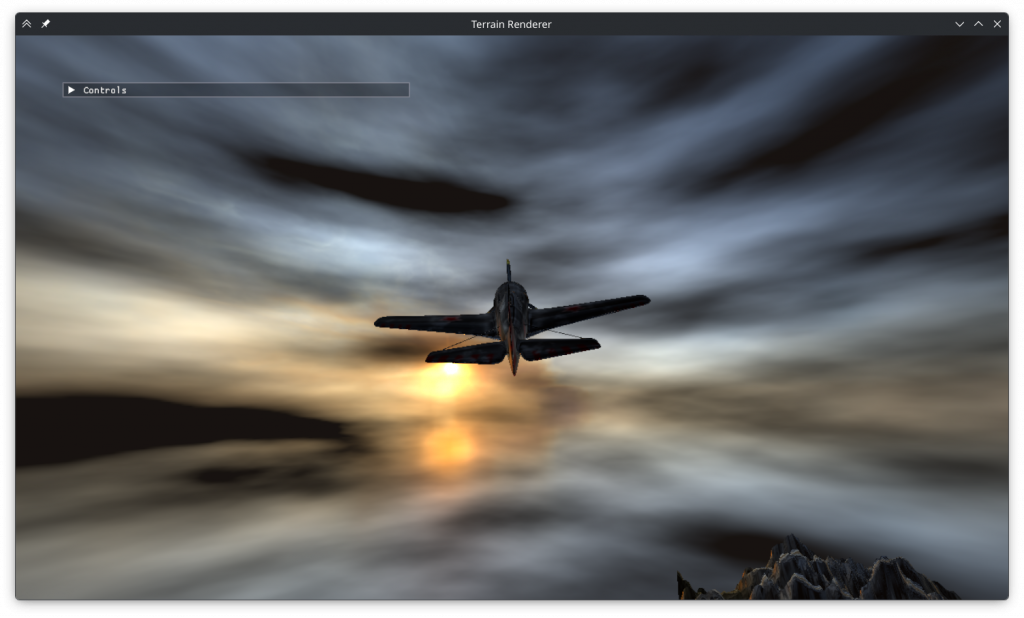
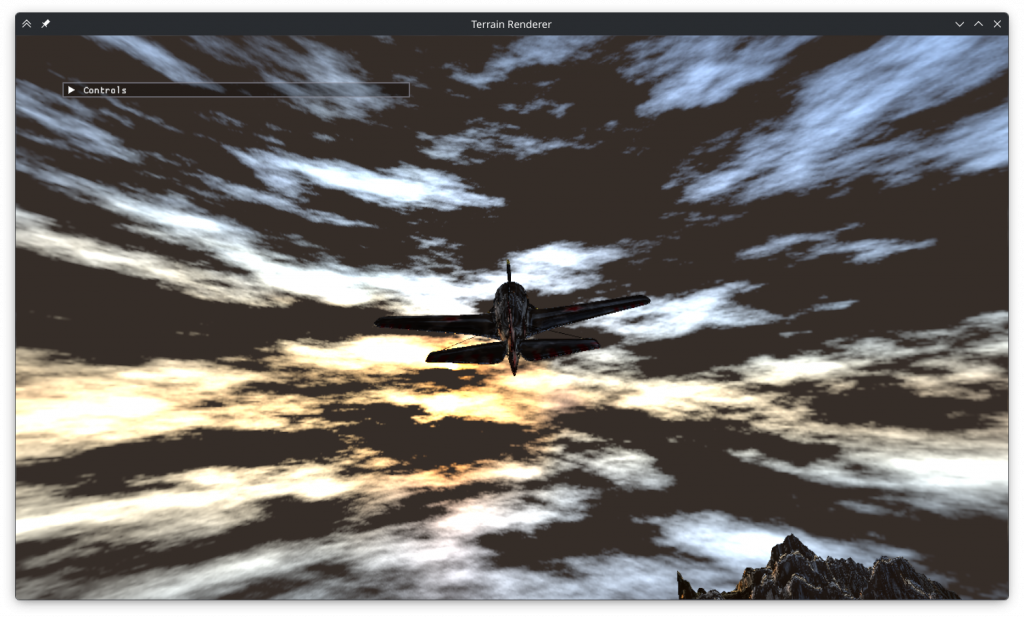
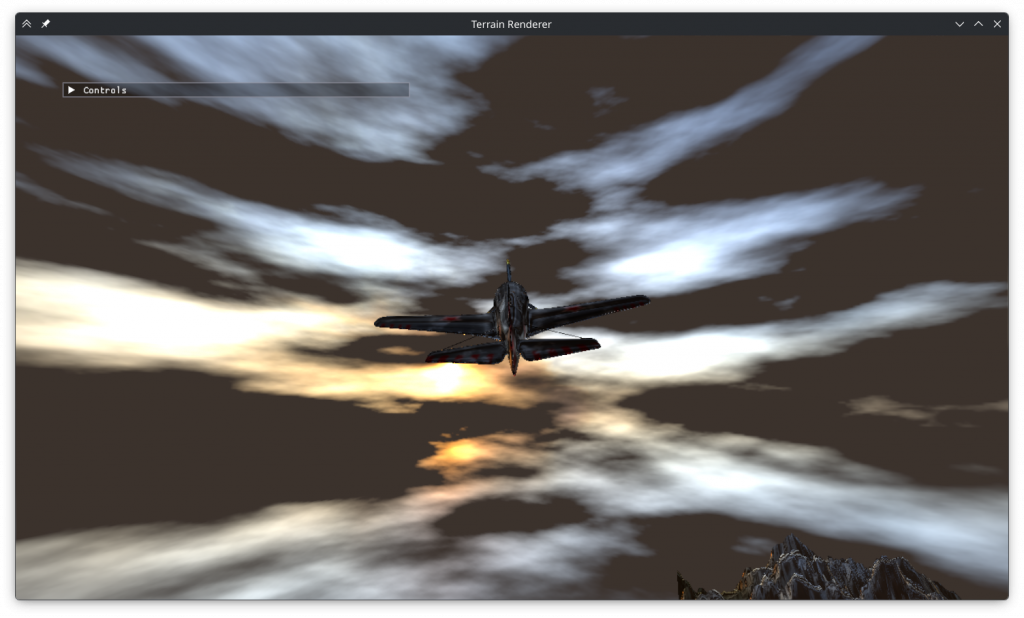
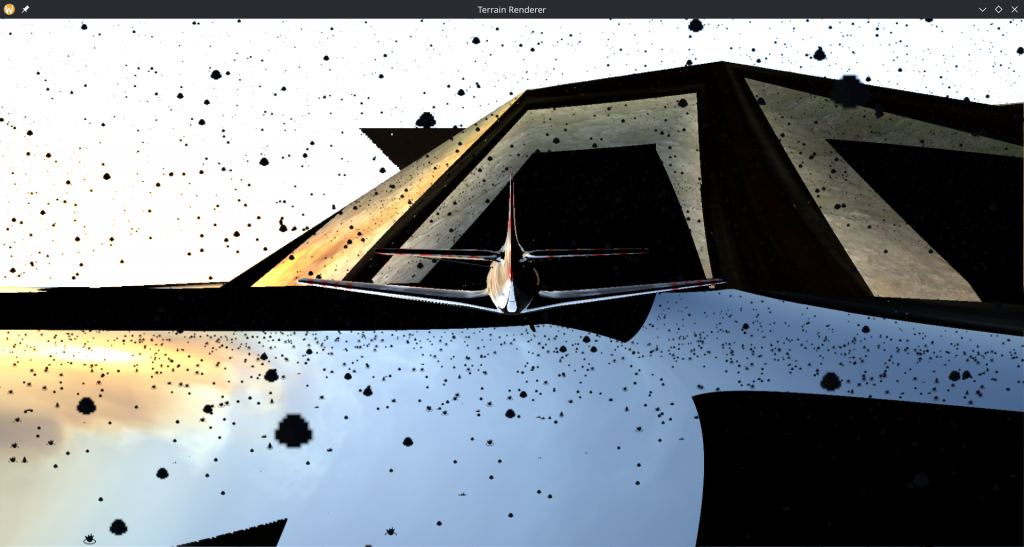
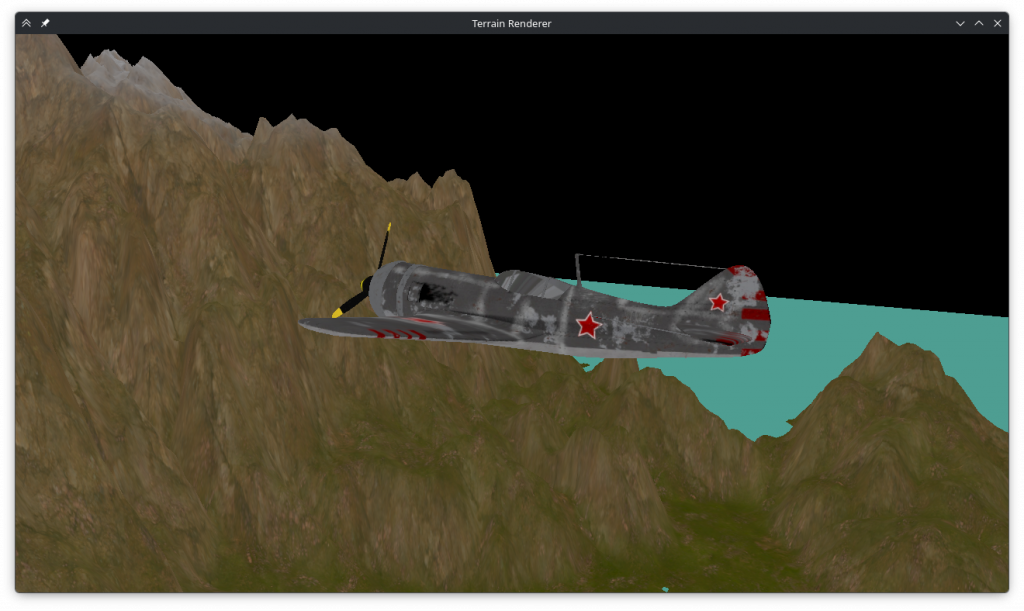
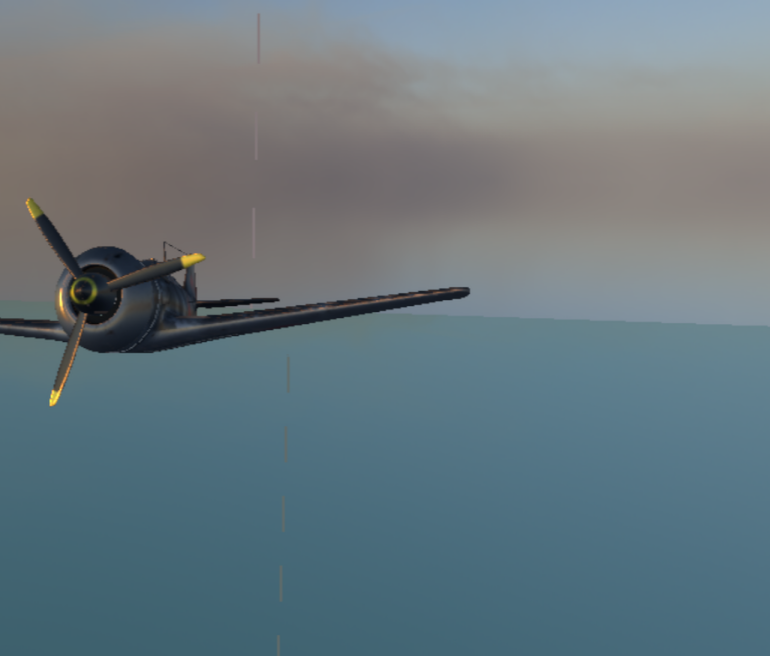
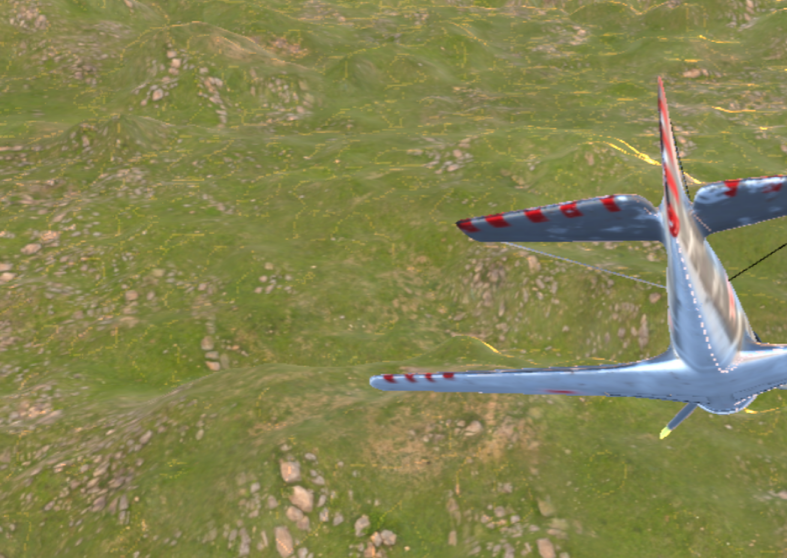
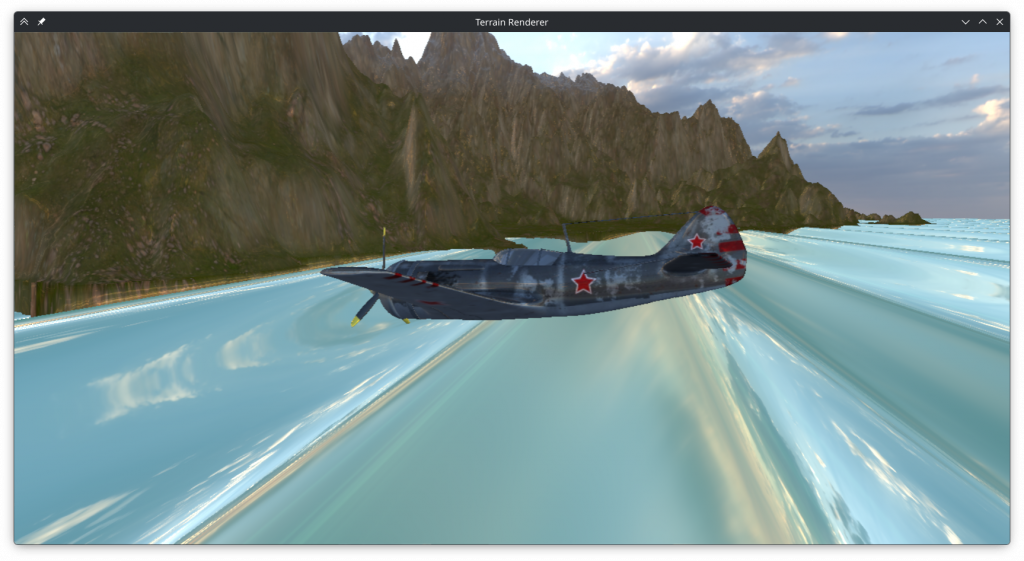
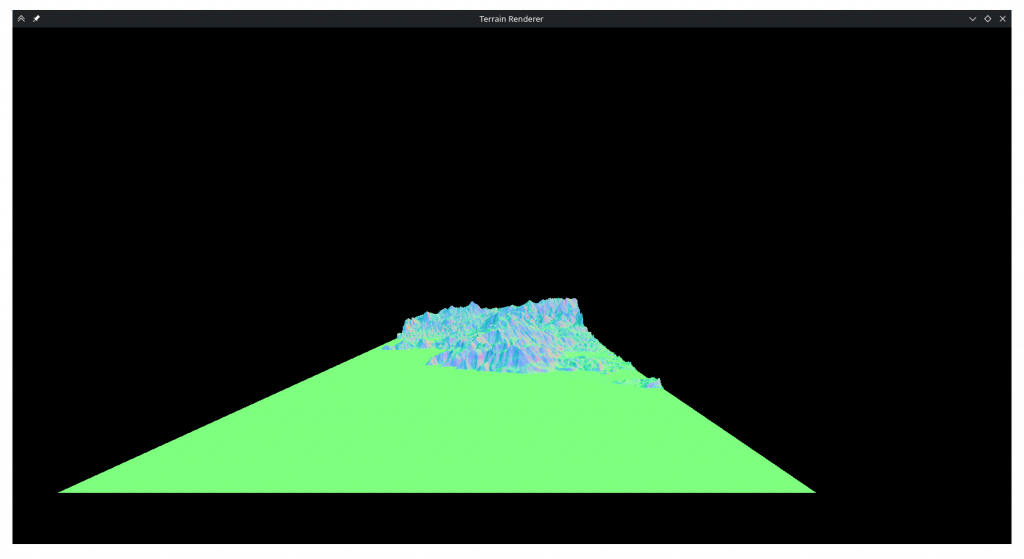
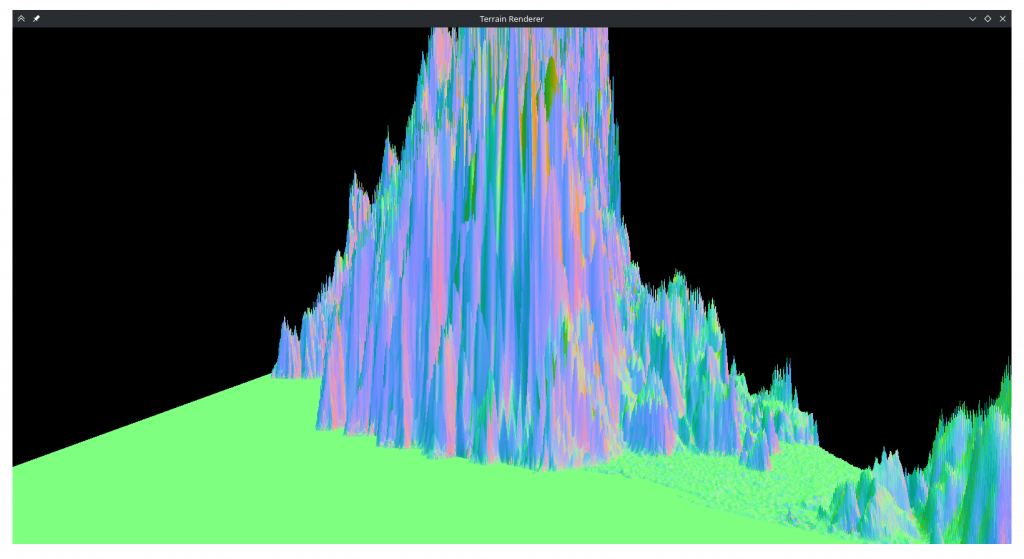
    I wanted to test the program on my laptop’s iGPU to make sure there were no performance problems. To my horror this was what it looked like on it:

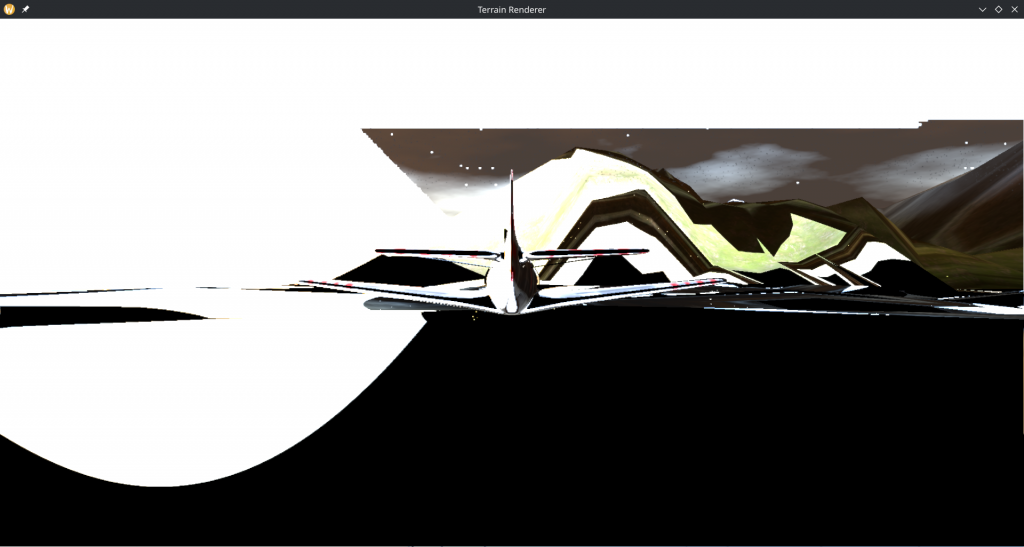
    The cubemap looked like one of my early attempts at creating a cube model, and the reflections on the environment were moving around and shaking wildly. The imgui window was also missing.

    I decreased the particle count and screen resolution, but what finally fixed it was decreasing the cubemap size. At 2048 it looked like above, at 1024 it looked a bit better and the imgui window text (but not the background) was visible. At 512 it looked right. I think the cubemaps above 6×512 caused vram allocation issues that silently returned black pixels instead of erroring or slowing down.

    Conclusion

    This was definitely a learning experience for me, not just for the graphics programming concepts but also for how OpenGL works and how to debug it.

  • CENG469: Plane Oddysey

    Hi, this is my blogpost regarding the HW2 of CENG469. The objective this time was to improve upon the previous homework, adding a controllable plane enviornment mapping and animated water.

    Migration

    I started by copying over hw1 and examining the provided starter code. I merged the utility files that I had edited with the new ones and added the imgui library.

    Plane

    My first task was to add the plane. I changed the camera struct into two structs, one keeping the plane’s position rotation and speed and another that keeps the camera’s offset and rotation. I added the keyboard shortcuts for zooming, plane and camera rotations. I implemented the and repurposed the code from last homework’s U-mode camera to implement the camera’s rotation while using the ordinary rotation for the plane. Then I changed the movement code such that the current speed moves the plane along the +z axis and w/s buttons change the speed. Finally I added the code that offsets the camera in its +z direction from the plane.

    When implementing this with the information fresh in my mind from studying for the midterm, I realized that I had written quat rotation code wrong in the previous homework. Instead of v'=qvq*, I was using v'=vq. However, upon fixing this everything broke. I eventually learned that glm overrides quat multiplication such that it rotates a vector, not multiply it directly.

    I added the variables to import the parts of the plane model and the draw calls (with the appropriate offsets) for each one. I added a time variable to the GLState that I used to determine the rotation of the propeller. Later I made the propeller rotation also dependent on the plane’s speed.

    Textures

    With that done I moved on to the textures. I realized that with 4 models and 6 textures the code for drawing the plane was quite cumbersome to have in the main loop, so I created a struct to hold all its texture, model and shader variables and moved the draw code to a single method of the struct. Also seeing how the starter code had different shaders for different things instead of changing the mode uniform of one shader, I created seperate shaders for the plane and terrain. The plane shader simply maps the given texture as color.

    To draw the terrain I created another struct that holds all the terrain textures and handles the pipeline. This made the main loop nicer and easier to dollow. For its fragment shader I used the fragment x-z coordinates as the u-v coordinates. Instead of the sharp color transitions in the hw1 I wanted the textures to smoothly change, so I removed the if-else gates and used 2 mix calls mix the textures. I ended up not using the shore texture in the shader.

    Texture mapping

    Tonemapping

    With that done the next goal was tonemapping. I looked up how to do this in OpenGL and found an official aritcle with some sample code. I created another struct that’d keep the texture buffers and shaders. I implemented the process using the apis already used in the project following the example of the sample code. I also read the tonemapping using mipmapping paper to see how to implement that part of the code. Finally I named the method endRender and placedits call at the end of the main loop. The tonemapped image looked significantly brighter but upon comparing it with the texture files I decided it was correct.

    Texturing

    Enviorment Mapping

    I decided to create another method under the same struct called startRender that’d have the enviornment mapping code. I implemented the new enviornment.frag by loosely following the cubemap generation code in the slides. However as the camera could face any direction unlike a cubemap I had to improvise. I devised that if I pass the gaze direction and the field of vision to the fragment shader I could use atan and asin to find the i-j coordinates (u-v of the spherical image).

    In my first implementation I figured that if I just calculated the i-j coordinates of the gaze vector I could multiply the fragment’s u-v coordinates with the FOV to find the correct i-j coordinates. Initially everything was sideways, but eventually I figured out that I was assigning i to j and vice versa. After fixing that it seemingly worked, but upon rotating the camera it was obvious something was off.

    Flat looking enviornment

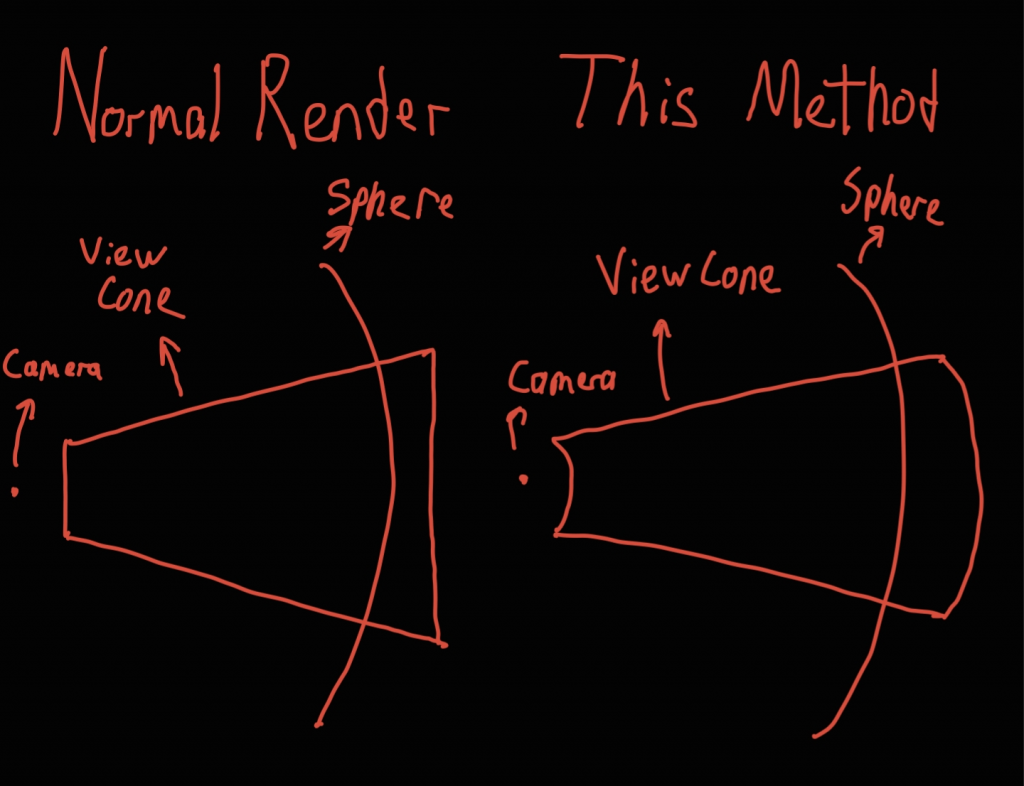
    I thought a lot about what is wrong and the conclusion was that I’m sampling spherically from the sphere instead of linearly.

    Flat looking enviornment explanation

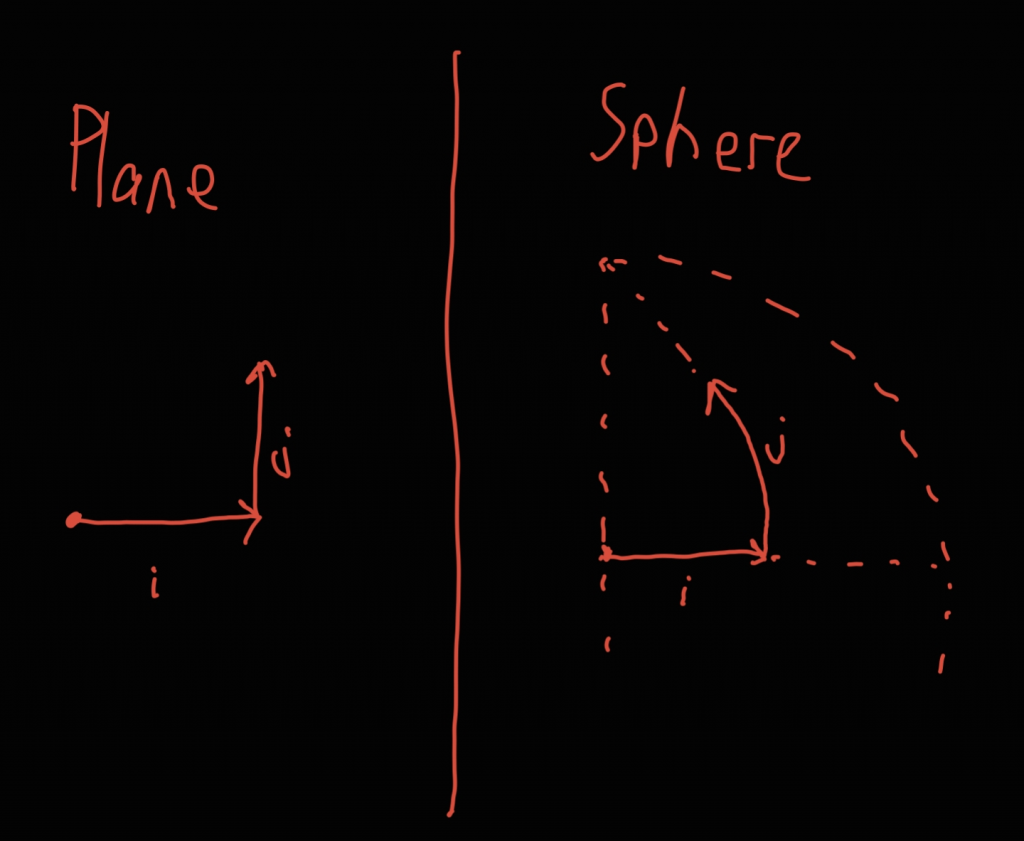
    To mitigate this I decided I needed to find the vectors of the 4 screen edges and linearly interplate them. I thought the range the previous algorithm sampled was correct, so if I could linearly sample the range it would produce correct results. For example for the horizotal edges I used the previous algorithm to find the i coordinate of left and right edges, used sin and cosine to turn them into vectors, linearly interpolated the vectors and turned the result back into an i coordinate. However the outcome was even worse.

    Fisheye looking enviornment

    I thought long about this but I could not figure out what was going wrong. However I suspect it is related to how it is possible to draw a triangle with 3 right angles on a sphere.

    Fisheye looking enviornment suspicion

    All my efforts to fix this were fruitless and eventually I also discovered that I was dividing the wrong variable by 2pi so it actually looked like this:

    Edge of the enviornment

    Which made me think I wasn’t mapping the texture spherically, just sliding a flat image in a fancy way. I reverted the scaling fix.

    I gave up and asked an LLM what I should do. It produced some ray tracing looking code and when I adapted it to the codebase I saw that it looked significantly more correct. There was still significant parallax between the mountains and clouds but I figured it’s natural given that the mapped enviornment is infinitely far away and real life clouds are sometimes lower than mountains.

    I added a couple more HDRIs that can be cycled through using the v button. I also kept my 2 failed shaders, and they can be cycled using the b button.

    Reflections

    Next task was the reflections. I transferred the sky textures to a sky struct so it is consistent for different objects. I also attempted to place all the terrain generation code inside the terrain object but moving it outside the main loop caused errors so I reverted it. I added the roughness textures to the objects and changed the terrain and plane shaders to sample from the enviornment map.

    I experimented with many schemes to make ground look less shiny while obeying the roughness textures. I tried using higher mipmap bias while sampling the enviornment to blur it but this caused the enviornment to look flat shaded, as the pixel they were sampling from was more affected by the normal than slight changes in the viewing direction. I also tried taking multiple samples around the reflection ray and averaging them but it didn’t look susbtantially different. I ended up just using a combination of albedo + reflection sampled enviornment + normal sampled enviornment.

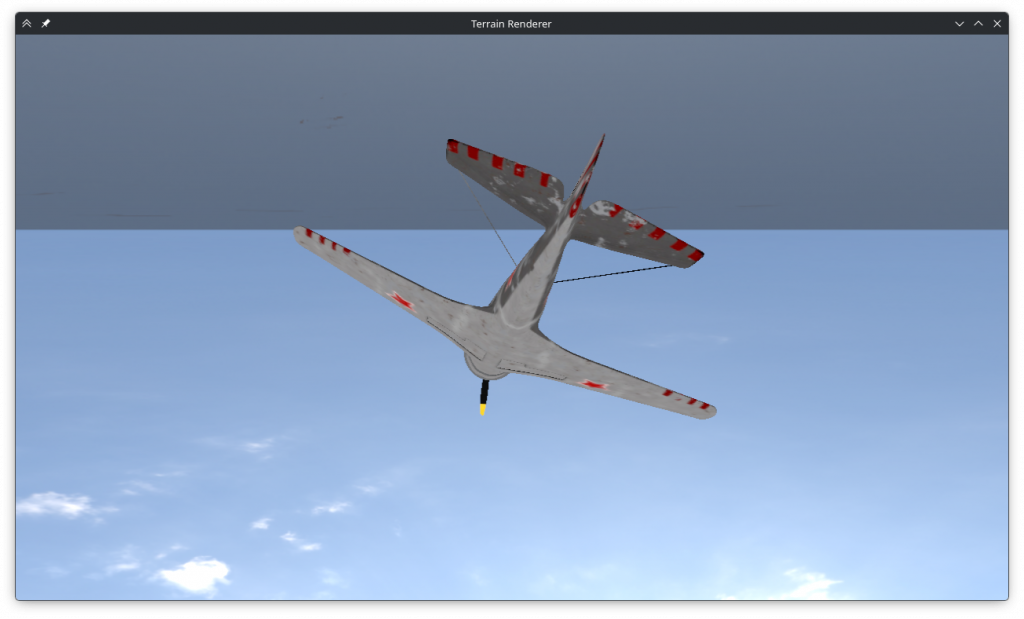
    I found 2 problems witht the result. First was that there was even more significant parallax between the water reflection and the actual enviornment map. I assumed this is inevitable since both sample from directions and the parallax wouldn’t be visible once the waves were animated. The second problem was the giant line that sometimes appeared in the sky was also visible in the reflections.

    Line in the sky
    Orange lines in the reflections

    All the lines, no matter how far they were and if they were reflected, were 1-2 pixels wide. I thought this was a gap between the two edges of the enviornment texture and tried to limit the i-j to [0.01, 0.99] range but it didn’t work. Some time later I found a webpage where a similar problem was seen in blender and it was caused by mipmaps. So I changed the TextureGL struct to allow disabling mipmaps and the lines disappeared.

    Performance

    At this point I needed to do the homework on my laptop, and realized that it ran terribly. And since the framerate was so low the plane was very sluggish as well. I changed the movement code to be based on delta time. I eventually figured that it was running on the iGPU, but to mitigate potential performance problems anyways I added two new options.

    The first option monitors the framerate and if it is too low automatically decreases the tesselation rate or increases it if there’s headroom. It is toggled via m and since it worked reasonably well it is on by default. However it does have the bug that if the program is minimized it thinks it’s running badly and keeps decreasing the tesselation ratio. It also sometimes gets stuck oscillating between two ratios if the GPU in the system is more powerful than the CPU.

    The second option changes the sampling function from a uniform density to one that is denser around the plane and is toggled via n. Unfortunately this didn’t work well (the function might’ve been too sharp) so I left it off by default. This was a good call since enabling it at all on my desktop crashes the process.

    Waves

    Finally I added the animated waves. Initially I wanted to make it a seperate mesh, but I decided it would be easier and more performant if I modified the 0-height vertecies of the terrain mesh. To prevent coastline weirdness I offset the sin to [-2, 0] range. I had some difficulties regarding the normals but eventually figured out that I wasn’t supposed to apply inverse model matrix to them, and this fixed them.

    Waves

    Looking at the waves now, I seem to have messed up the time component at some point as their movement is impercemptible unless the plane is stopped and they are watched carefully. And maybe I shouldve done something to make them look less line-y when viewed from afar.

    Conclusion

    This was a nice sequel to the previous homework. I did some parts better than others. Some parts could be better but I’m satisfied with the results.

  • CENG469: Terrain Rendering Adventure

    Hi, welcome to my blogpost detailing my journey through completing the Surface Rendering HW1 of CENG469. The requirements of the homework was to write an OpenGL program, based on the supplied starter code, that renders terrain based on height data found in .dted files.

    Setup

    I started by running the starter code. While running commands to start it worked, I wanted to be able run it by clicking a button on VSC. For this purpose, I raided the folder of the last CENG477 homework, which had working launch.json and tasks.json files. Additionally I needed to symlink glad from ext/glad/include into the src directory so that clangd could read the header. With enviornment setup done and starter code working, I moved on to trying to make something I make show up on the screen instead of the default triangle.

    Mesh

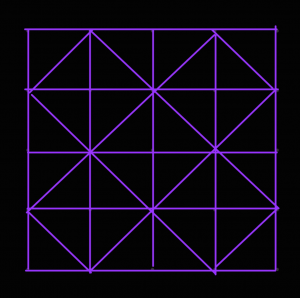
    I reread the lecture slides to find all the code neccessary to create a vao and copied them over into the program. For the vertecies I iterated over the dted height data and created a vertex at each index with x being the first axis, y the height and z the second axis. Next I needded to somehow connect these vertecies to create triangles. After some doodling, I came up with this symmetrical scheme: 

    To implement it, I made a second pass and I created 4 triangles around every vertex where (x + y) % 2 == 0 by connecting it with 2 of its cardinal neighbors at a time in counter clockwise direction. This meant the triangle indecies wouldn’t be in order for triangles that are next to each other, but I figured it would be fine. For normals, recalling the slide that mentioned how for some tesselation ratios B-Spline normals might not match triangle normals, and considering that I did not have splines yet, I opted to calculate the face normals of each face in the face pass and add them to the normal data of their vertecies. Finally in a third pass I normalized the normals.

    Controls

    This seemingly worked, but I couldn’t see the enitrety of the model so to make sure it was right I needed to be able to move the camera. I proceeded to once again plunder 477 HW3’s code to copy over the callbacks and extra variables added to the GLState struct. The keyboard callback code works by checking if the key is a movement key, and if so sets the appropriate bit in the state.moveButtons variable. This variable is then used during main loop to modify the position vector of the camera, which worked fine in this homework. The mouse code on the other hand, was modifying rotationX and rotationY parameters based on the distance mouse travelled and these veriables were being used to calculate the gaze vector towards a (real or imaginary) planet. Not only would would this not work, but it didn’t use quats netiher.

    So I started experimenting with quats. I stored a rotation quat in GLState that I could manipulate by multiplying with rotation caused by mouse events and q/e buttons. When it came to using it, I tried to multiply it with something or another to be able to pass it as gaze into glm::lookAt function but it didn’t work. I checked the slides to see if there was a better way and ended up going back to basics by using glm::mat4_cast to convert it to a rotation transformation matrix that I could multiply with the translation matrix, bypassing glm::lookAt altogether.

    I could now control the camera, however it didn’t feel right. When I moved the screen 90° down, 90° right and 90° up everything would be sideways. This annoyed me so I decided to add an option to lock the up direction. While trying to make rotation work I had noticed the glm::quatLookAt function that took an up vector as argument. I multiplied the forward vector glm::vec3(0, 0, -1) with my quat and passed it alongside the up vector glm::vec3(0, 1, 0), hoping some magic would fix the up direction. Instead, any attempt at rotating the camera caused it to shake uncontrollably. Upon closer inspection, the camera seemed to be jumping between two positions seperated in yaw by the camera’s pitch angle. I had no idea what caused this, but I decided if it jumps between two spots, applying glm::quatLookAt twice at a time would make it end up in the same spot, which it did! But now the camera couldn’t be pitched and rolls made it very upset. I fixed this by using the new up direction as the up vector in the second call and after limiting the rotation so it couldn’t align with world up, I had a nicely behaved camera. I assigned the toggle for this camera mode to ‘u‘.

    Normal
    U-mode

    I added the ‘-‘ / ‘+‘ based height controls. I uncommented the shader line that corrects normals, but I liked the “topological map” look uncorrected normals had when height factor is 0 so I added an exception for that. I also added some additional camera controls for going up, down, faster and slower to make getting close to the geometry easier:

    Upspace
    Downc or ctrl
    Fast movementleft_shift
    Speed up movementwheel_up
    Speed down movementwheel_down

    Tesselation

    Next in line was to add spline tesselation. I had already structured my code such that the mesh generator depended on a callback for height data, so I just needed to swap the dted height data with splines and add a sample rate parameter.

    The spline equation Q(s,t) = S·M·Z·MT·TT involves taking the transpose of a row vector, which didn’t work as glm apparently doesn’t differentiate between row and column vectors. It turns out in glm even though multiplying a matrix with a vector (or vice versa) does dot product-like matrix multiplication, multiplying two vectors does piecewise multiplication. This meant I could to use glm::dot when multiplying either vector and I would get a float. I added new hotkeys ‘h‘ to toggle sampling between original geometry / splines and ‘j‘ / ‘k‘ to control the spline sample rate.

    Around this point I realized that MeshGL wasn’t just a struct that held a couple numbers but it also enforced things that I didn’t understand that limited how it could be constructed or copied. I couldn’t figure out the right way to use it so I lobotomized it and added the code to delete old buffers myself.

    This (seemingly) worked but it was very slow to start or change the sample rate. I realized that the middle of the spline equation M·Z·MT did not depend on the sample position, so I could precompute all splines and just access them while sampling. This somewhat helped with changing the sample rate but the program was still slow to start. I decided to use the thread library supplied with the homework to speed it up even more. Using threads to speed up the spline computation was easy enough. For mesh generation after splitting the second pass into face pass and normal pass 1, the vertex and normal calculations could also be parallelized. But if I tried to paralelize the face generation it would scramble the geomety badly. I had to find a way to calculate the face number from the vertex instead of just incrementing it after each face. After more doodling, I found the equation and after implementing it the parallelism worked.

    Scrambled geometry

    Seeing how I’m using threaded code anyways I decided I could avoid blocking the main loop altogether if I put the entire tesselation function in another thread. This resulted in a bunch of GL errors in the terminal and a black screen. I eventually figured out that the opengl functions can’t be called from a background thread. I splitted the tesselation code into a part that genereates the geometry and a part that creates the buffers and uploads the geometry. This allowed changing tesselation rate to not immediately freeze the program, athough uploading the geometry still does as tesselation ratio grows. To overcome this and general performance problems with high sampling ratios, I added an option to reduce the ratio of the area that is loaded, controlled by the hotkeys ‘z‘ / ‘x‘.

    Now I could increase the sampling ratio and look at the smooth curves. But when I did I did not see what I expected.

    (not) Aliasing

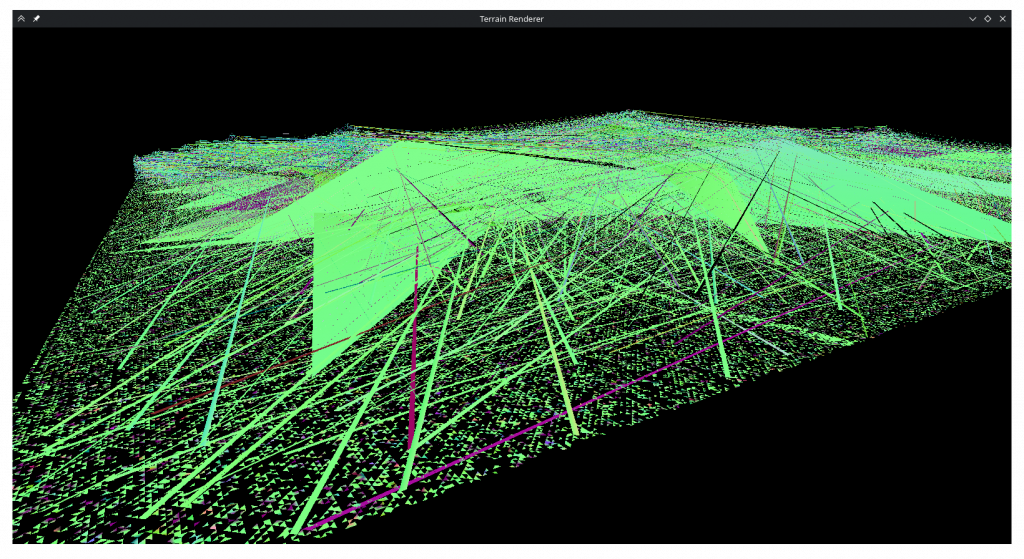
    I thought this was aliasing between sampling rate and control point rate. To combat it, I opened wikipedia and copied myself a nice list of prime numbers that I could use instead of normal fractions. This did not help at all. In the process of debugging this I realized my control point matrix was wrong and fixed it, and realized the B-Spline matrix lacked the 1/6 normalization term but left it out as with it my geometry was very short. While trying to render much simpler B-Spline surfaces I also realized that the dted data I was displaying was not supposed to be a thin rectangle as I thought.

    Thin

    In the process of debugging I added a flat shaded display mode, toggled by ‘f‘.

    After debugging for a long time, I discovered that my s and t variables were integers 🤦‍♀️. However, when I turned s and t into floats I realized that the mishapen plane was the least of my problems.

    Oh no

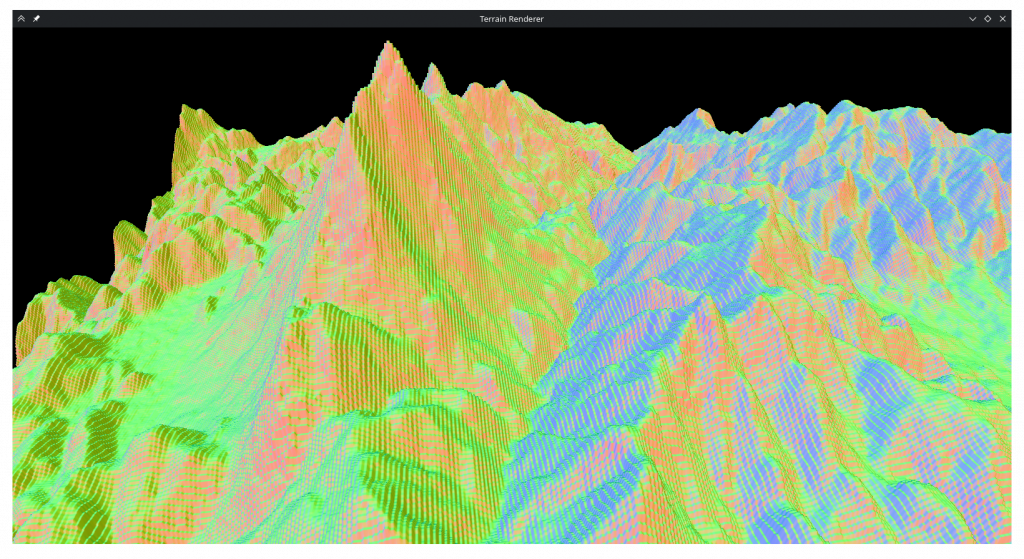
    Whatever this was, it was the opposite of aliasing as it was less severe when the sampling ratio was an integer multiple or divisor. After even more debugging, I came to the realization that glm processed matricies in a column first order. This meant my basis and control point matricies have been wrong all this time. After transposing them and adding the 1/6 term the rendering seemed to be sane again. But an old friend was back:

    (still not) Aliasing

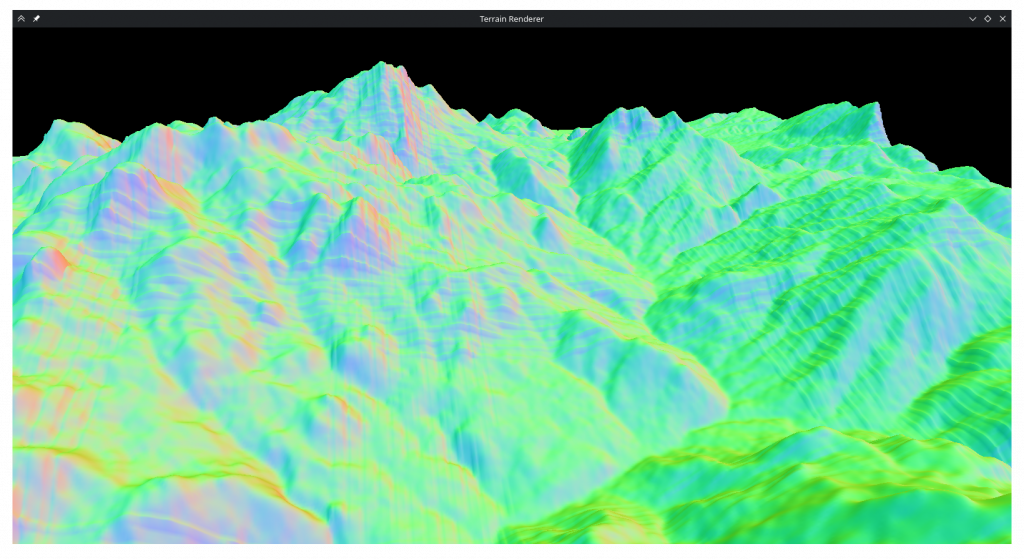
    I remembered that with the transposed inner matrix, S and T also needed to be switched. This seemed to prevent aliasing, at least initially. But when I increased the tesselation ratio it was still there:

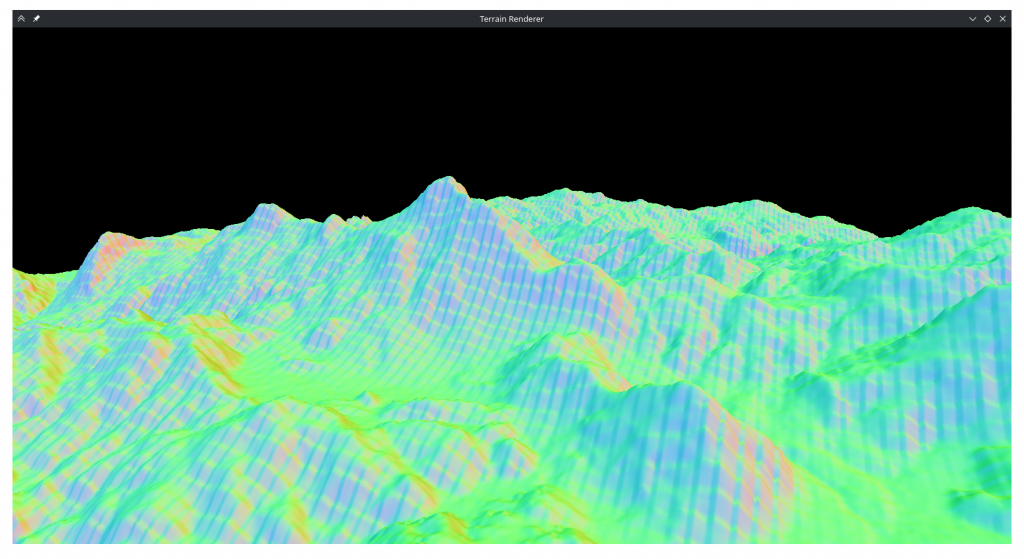
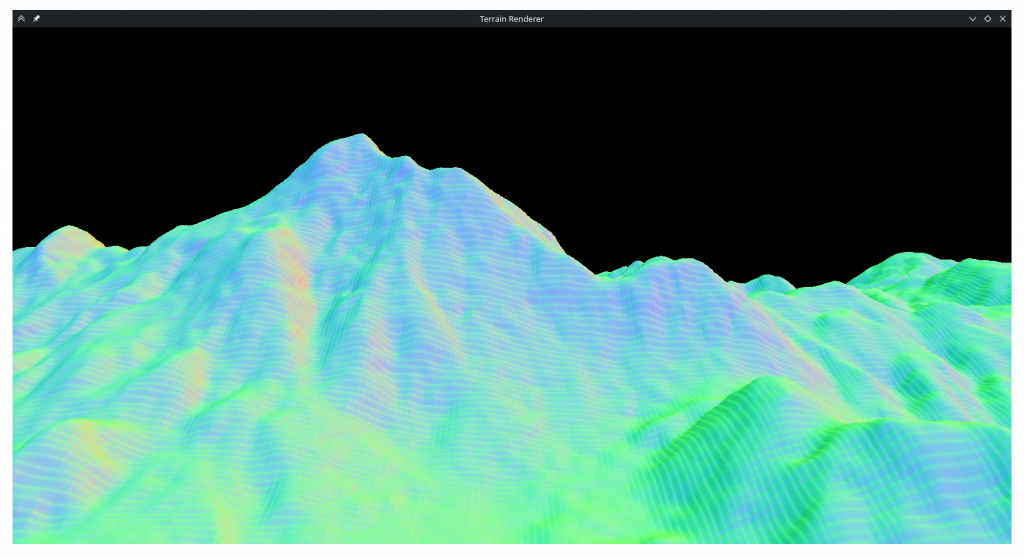
    Aliasing?

    After another long debugging session, I found that at some point during debugging I had changed a value in the basis matrix and it was wrong. Finally after fixing that as well, the tesselation seemed to work fine.

    I spent an embarrasingly long time trying to figure out why only a third of the map was visible. I had passed faceCount directly to indexCount thinking OpenGL wanted the number of primitives, and fixing that as well, I had a nice square map.

    Shading

    I added the toggle for wireframe mode and the only thing remaining was shading. In the fragment shader I added diffuse lighting based on direction and baseline world lighting that are summed and multiply color values received from the fragment shader. I wanted specular highlights so I made a web search and found something about raising the directional light to some power but it didn’t do much. In hindsight that’s because the normals are always smaller than 1 so when I took the larger of 1 or the specular it always returned 1. Since then I tried fixing it but it looks like plastic with it on so I don’t regret botching it.

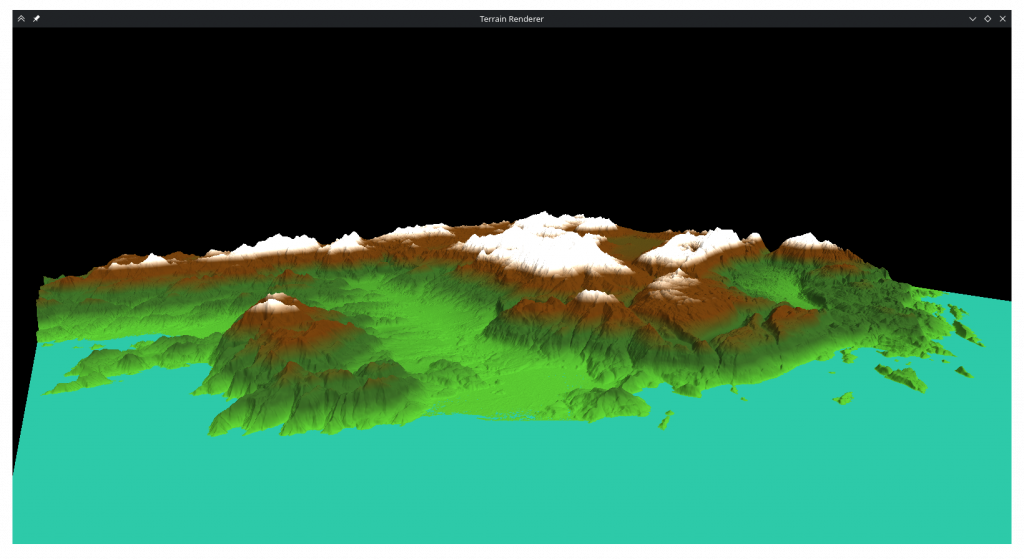
    For the colors I began by implementing 4 layered colors as required, but I quickly abondoned it as it didn’t look very nice.

    Height based coloring

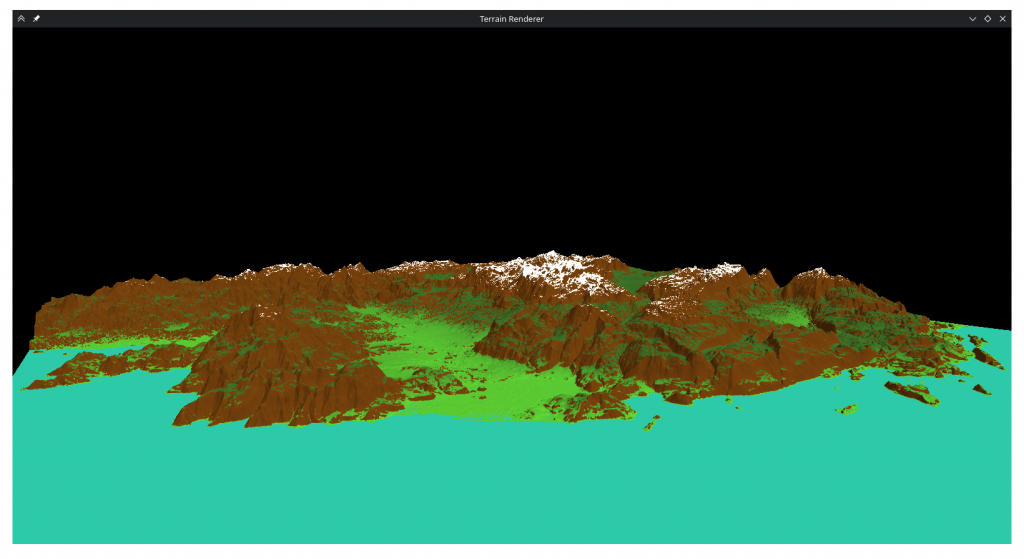
    Instead I incorporated the surface normals into the calculation to decide which areas would be brown or white, which produced a more pleasing image:

    Height and normal based coloring

    I know this wasn’t what was specified, but as ‘artistic discretion’ was metioned I thought what looked better to me would be better to include.

    Finally I added normalization to movement direction and fixed a bug where if movement buttons for opposite irections were pressed at the same time it would result in a 0 vector and launch the camera to nan.

    Conclusion

    This was a nice and fun homework. It is quite satisfying to write code and see the results of it visibly on the screen. I had difficulties with some parts but I think it all worked out at the end. I hope the code I wrote is condusive to adapting for the second homework.

    Epilogue

    With prime sampling rates I couldn’t notice aliasing, but I’ve been wondering what would happen if I use just any sampling ratio. So I tried between 1 and 2 in 0.01 increments and…

    Aliasing…

    Similar artifacting happens at 1.07, 1.08, 1.19, 1.20, 1.32, 1.44 and 1.45 ratios. I have iterated over the entire spline array to see if the corners line up with each other and discovered that they don’t, they deviate on the order of 1e-4. I had run a similar iteration over a simpler mesh after the last time I fixed aliasing and it didn’t show discontinuities so I don’t know why it is now misbehaving on the actual mesh. My best guess would be that since the height data is on the order of 1e3 and floats have an accuracy of 1.5e-7 the fine detail is getting lost. However the aliasing doesn’t only happen in mountaintops and there are many neighbors that have deviancy / height ratios over 1e-6 so I’m not very confident that this is indeed the case.

    Revisions

    Reading this with fresh eyes, it’s possible I misremembered the order of events of the alisaing debugging, as the way I wrote it here doesn’t make sense. If everything was transposed and multiplied in the wrong order, that should’ve been the same as them not being transposed and multiplied in the right order. What possibly happened is that before converting t and s to floats I unfixed the control point matrix and caused the spiky terrain. Then I fixed the control point matrix and transposed it at the same time, but thought transposing was what fixed it.