
When people talk about AI in education, they often jump to tutoring bots or automated grading. But one of the most impactful (and least hyped) shifts is happening elsewhere: AI is becoming an accessibility layer that helps more learners participate—across reading, writing, listening, speaking, and navigating digital content.
Below is a practical, classroom-and-campus focused look at what’s changing, what to watch out for, and what you can implement quickly.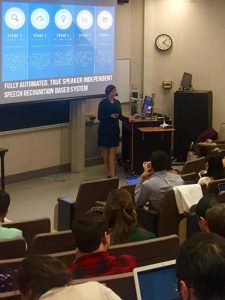
1) Live captions and transcripts become the default (not a special request)
AI-powered speech-to-text is making real-time captions far more available in lectures, hybrid classes, and recorded videos. That matters for:
-
Deaf and hard-of-hearing students,
-
students learning in a second language,
-
anyone in a noisy room or with poor audio.
Some tools emphasize automated captioning and transcription as a way to serve students in-class and online.
Good practice: treat captions as learning support, not just compliance. Build activities around them (keyword spotting, note-making, summarization, review before quizzes).
2) Reading support at scale (dyslexia, ADHD, emerging readers, language learners)
Reading accessibility has taken a big step forward with tools that can:
-
read text aloud,
-
translate into many languages,
-
adjust spacing/line focus,
-
support comprehension with multisensory features.
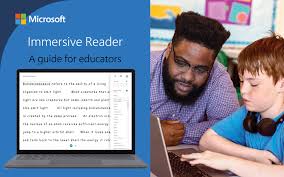
Microsoft’s Immersive Reader is a widely used example, positioned as a reading experience that supports “all ages and abilities,” including features like read-aloud, translation, and line focus. Microsoft Azure
Good practice: normalize these supports for everyone (Universal Design for Learning mindset). When everyone can use them, fewer students feel singled out.
3) Accessible content design becomes a teacher skill (not just an IT checkbox)
As schools ship more content digitally, accessibility is increasingly tied to standards. WCAG 2.2 is a W3C Recommendation and adds new success criteria compared with WCAG 2.1, improving access for a range of disabilities. W3C+1
What this means in practice: even “simple” choices—contrast, headings, keyboard navigation, target size—shape whether learners can actually use your materials.
4) Generative AI can support UDL—if it’s used as options, not shortcuts
Generative AI can help create multiple pathways for learners:
-
simplified or “leveled” versions of a text,
-
alternative explanations (analogy, examples, step-by-step),
-
formats like bullet summaries, study guides, or question banks.
Some academic work explicitly frames generative AI as a potential support for Universal Design for Learning by offering multiple means of representation and expression. ResearchGate
The key: keep humans in the loop. AI-generated adaptations must be checked for accuracy and tone—and never replace individualized supports where needed.
5) The safety layer: privacy, governance, and “human-centred” adoption
Accessibility benefits don’t cancel risks. UNESCO’s guidance on generative AI in education stresses human-centred approaches and highlights the need for policy, capacity building, and safeguards. UNESCO+1
Baseline rules worth adopting:
-
Don’t paste sensitive student data into public tools.
-
Document which AI features are allowed and why.
-
Offer non-AI alternatives so no student is forced into a tool.
5 quick ideas you can implement this week
-
Caption-first review: ask students to pull 5 key terms from lecture captions + define them.
-
Two-level handout: publish the same reading in “standard” and “simplified” versions (teacher-verified).
-
Immersive reading routine: 10 minutes of read-aloud + line focus + vocabulary checks. Microsoft Azure
-
Accessibility checklist: headings, alt text, contrast, keyboard navigation (aligned to WCAG principles). W3C+1
-
Reflection footer: “Which accessibility tool did you use today, and what changed for you?”