Categories
CENG469

Meteor Simulator

Hello, this is the blog for my project of CENG469, where I attempted to make a meteor simulator. It is not perfect and does lack enhancing featured I wished to have, but I had so much fun I think I will continue to finish and make it prettier.

Here are the master features that I implemented all:

  • Procedural terrain generation with Perlin Noise (with tesselation shaders): Done
  • Procedural meteor generation: Done
  • Permanent land deformation with the crash: Done, though not perfect
  • Selection of where the meteor will land: Done, could be better
  • Particle, light and camera shake as crash effects: Done, though particle effects are laughable
  • Realistic shading: Done

For the extra features, I did want to have a night day cycle, however I hardly found a space skybox, let alone a skybox with sun and atmosphere so that was scrapped.

I did do my implementation with a meteor shower in mind since you can call multiple meteors at the same time without a problem. But currently the only way to have a meteor shower is to click frantically.

I am quite content with my noise functions, though I only used perlin noise with different random functions or combinations.

Part 1: The Surface

I implemented this project over the second homework, as I thought I could use various aspects of it, especially the hdr part. This did not go as planned as I hardly found a skybox at the very end. To get back on track, I am just warning for text and cubemap artifacts from the second homework.

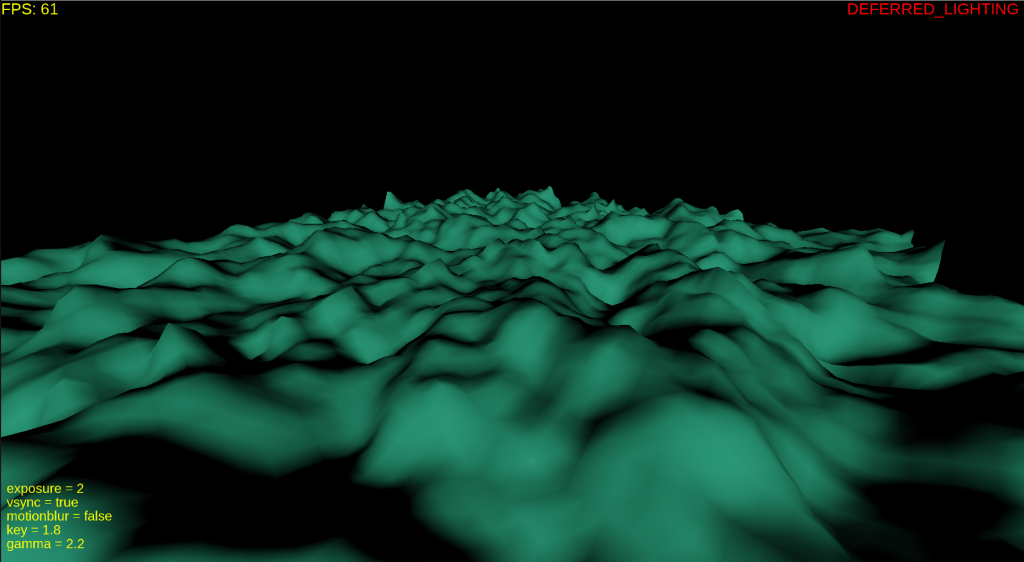
I started with drawing a grid with vertices and then applied 2D perlin noise on top of it. At the beginning, without normal calculations, this is how the ground looked.
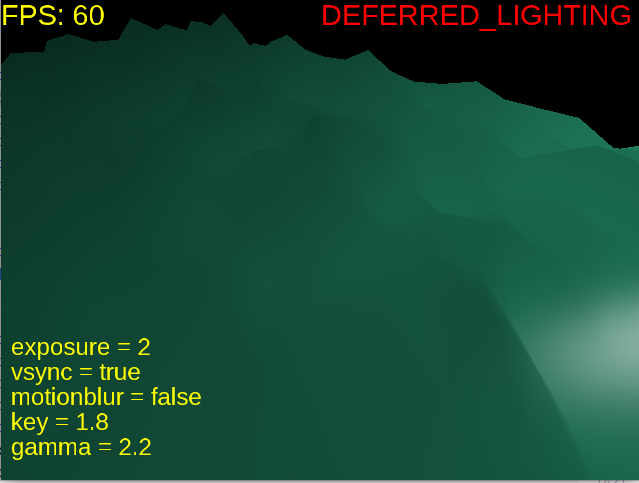
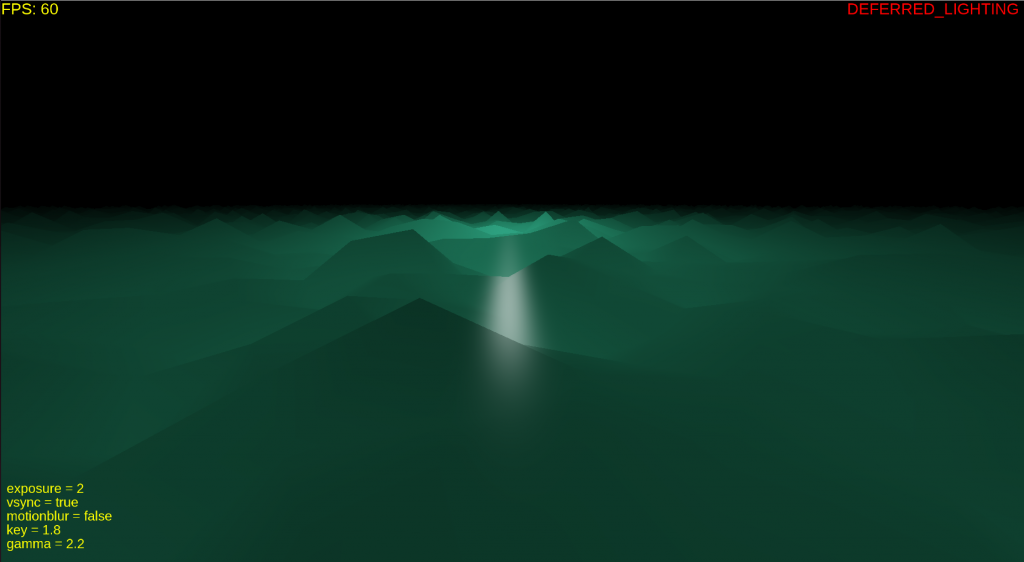
Quite majestic, looks like waves. But that is not the aim so I calculated the normals as follows:

I first took four points, each one slightly to the left,right,forward, and backward. Then I applied the noise and found their final location, then computed the final normal by subtracting the points in the same directions and taking the cross product. Here is the code:
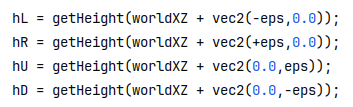
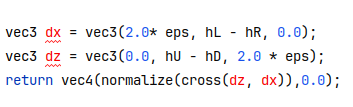
The result is quite great… For now. I then changed the implementation to use tessellation shaders and after that this is how it looked from above:
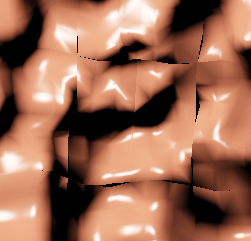
I fixed this issue by not precomputing the corners since when x and z are multiplied by 2 in the perlin noise functions, they could exceed the precomputed corners.

After fixing it, I continued to play with the noise function to have it the way I wanted. I also added dynamic tessellation, though I did not use it because my computer could hardly handle the smallest acceptable tessellation size.
Part 2: The Meteor

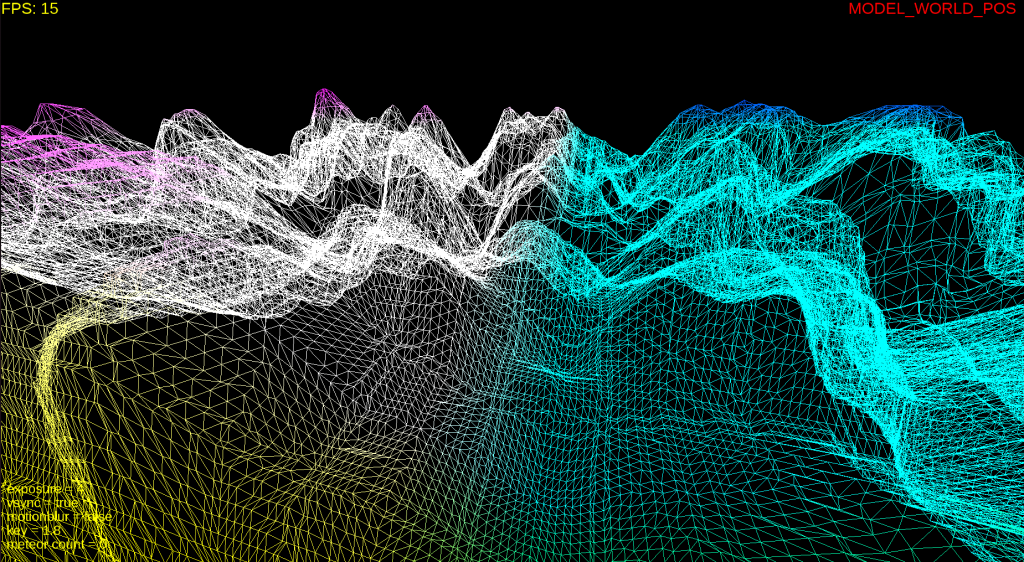
After handling the surface, I thought the meteors would be the same. It was not. There were a lot of design questions as well as the 3D Perlin noise. When the noise was 3D I was not able to do the small tricks I did during the render of the surface. Handling the normals, the noise function and everything took longer than the surface. I again first implemented without tessellation shaders to be sure.
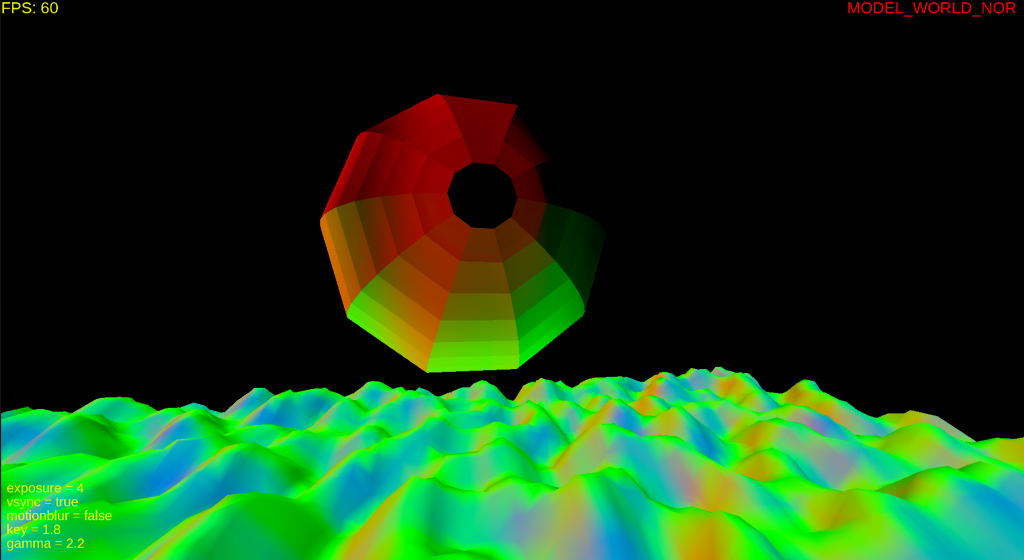
I used a simple sphere algorithm (https://www.songho.ca/opengl/gl_sphere.html) that mostly separates the sphere into patches, just like we want for tessellation. But as seen in the picture, the top parts need to be single triangles, and thus not four cornered patches. I did not completely fix this, just made it really small.
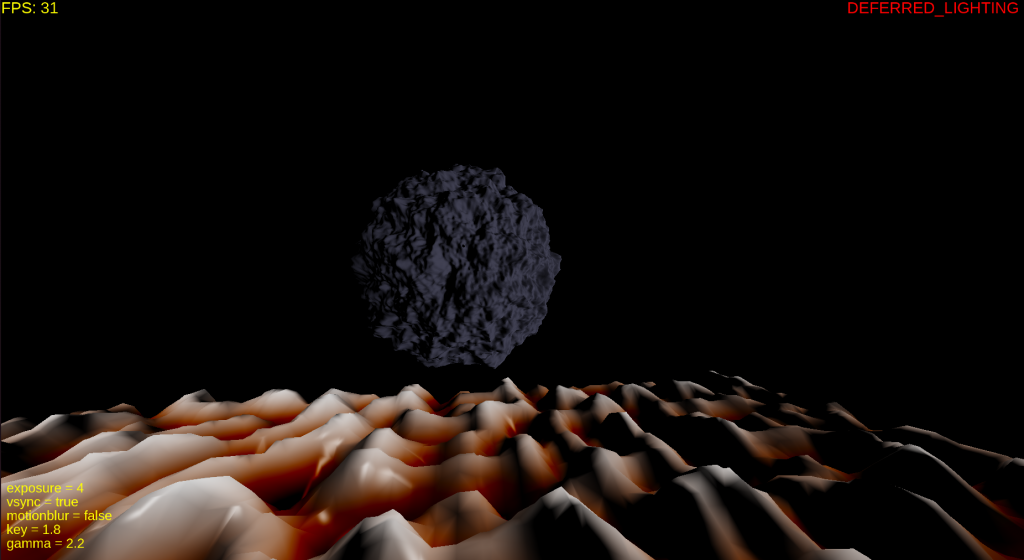
This is the initial meteor surface, I then lowered the resolution and the perlin noise degree. As you can see in the top left corner, even though I was not making any computation with the cpu, my poor pc was struggling as my GPU is just decent. To help my pc, I used dynamic tessellation and lowered the size drastically when the meteor is slightly far. It did help quite a lot.

Part 3: The Crash

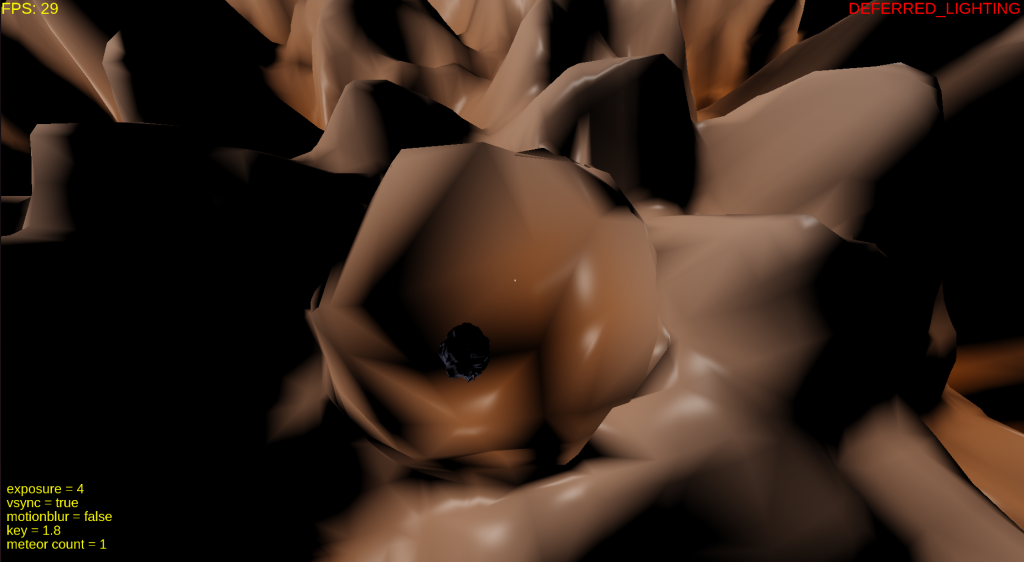
Adding velocity etc. was simple. The main idea was how would the crash look like. I chose to have a very big sphere that is far away, as that is the easiest way to mimic a crater. After doing that (and struggling with embedding the meteor just right), I realized the crater was so smooth. So I did it again, I applied Perlin noise. It’s like magic.
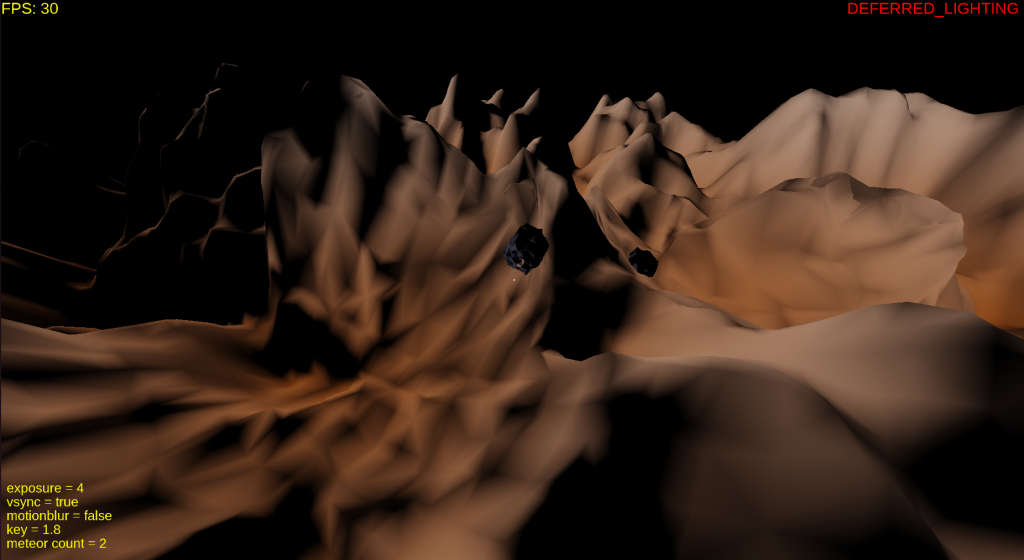
Part 4: The Effects

Then came the effects. I applied a randomize shake, a flickering light and a very sad particle effect.

For those, you can check the final demo.

Part 5: User Interaction

Arrow keys: Movement around the “map”. To do this I simply move the modeling matrix in the opposite direction because the cubemap and the camera needs to stay the same.

N/M: Go down/up

Scroll up/down: Change FOV

Left click: Call a meteor to crash if the dot in the middle is crossing the surface.

The other control are the same as homework two.

Final Result

In the end, I managed to get a decent FPS by managing the tessellation and sizes of everything. It could be better, since I did not utilize compute shaders.

I chose this project to be like this because I wanted to get comfortable with OpenGL and I managed to do just that. There is more to it of course, but right now I am very comfortable with shaders and passing buffers, as I was not after the homeworks 🙂

Categories
CENG469

Particle Simulation

Designing the Structure

Before everything, I started with deciding the structure I would use to code. I took the previous homework’s code as a base and deleted everything but the bare bones. Then started adding homework requirements to the code. I decided on using the following arrays:

  • gParticles: xy – coordinates, z – age
  • gVelocity: xy – current velocity, zw – initial velocity
  • gAttractors: xy – location, z – mass

I then wrote the functions regarding adding and removing attractors. I used a simple array logic where I hold the number of attractors as an integer and every attractor in the list with index bigger than number of attractor – 1 is not included in the velocity computation.

Compute Shader

After handling the initial requirements, I then moved on to the compute shader part. First of all, I changed the version to 4.3 since that was when the compute shaders were introduced.

For this part I mainly used the compute shader slides as a guide. However I did need to make some changes to make it work fully.

Initially I made the simple mistake of having two different buffers for the particles for both compute and vertex shaders. This did not work since the vertex shader is supposed to get the particles with the updated vertices. I did not pass the velocity or the attractor buffers to the vertex and fragment shaders since all I needed was the age and the positions for these shaders.

At this point I was still seeing nothing on the screen, I later found out the reason was 2 things:

  • Depth: I was choosing the depth as 1.0, which was the deepest.
  • Projection matrix: Naively, I thought I did not need it since we were working on 2D. I was suspicious as to how that would work and eventually decided on adding back the matrices but did figure out viewpoint and modeling matrices were unnecessary. The need to update the projection matrix at the reshape function gave a hint about its importance. I did a small researched and found out that I would need to make it orthographic, not projection.

After these changes, I started seeing something. This was the halfway point of my overall effort. For me, the process before seeing anything is always the hardest since there can be too many problems causing the black screen.

First Particles On Screen

By default, I chose the origin as the middle of the screen. Since the code for nearly everything was ready and needed debugging, this view is actually all the points on top of each other. Also, at this point I was initializing my projection matrix to have (0,0) right in the middle, thinking it would make it easier. I later made it from 0 to gWidth as that turned out to be easier for debugging.

I then tried to slide my origin to the side. And achieved the picture below instead. This very obviously shows a memory alignment issue.

It was a simple problem, I had started to use a 4 member struct instead of 3 and thought I had changed it everywhere, but had forgotten

After changing that, every particle was on top of each other regardless of the origin. This meant I could start playing with the velocity computations. Initially, just adding the velocity meant nothing, it would still seem as a single point. To fix that, I initialized the age of the particles with 1.0 and decremented with their index until zero. I got the result below (I was also testing the delta time variable here).

This raised a question in my mind, wouldn’t it be too line-like if I did everything the same for the points except the ages? To prevent this I initialized every point with a randomized velocity vector and passed this initial velocity to the compute shader so that when a particle reaches the end of its lifespan, it will not loose the randomness.

Adding Attractors

I then started fixing the attractors, this was the point I changed the projection matrix back to a more usual choice, where (0,0) is at the top left. I added an attractor by default at (0,0).

Please ignore the red block, the text rendering was broken

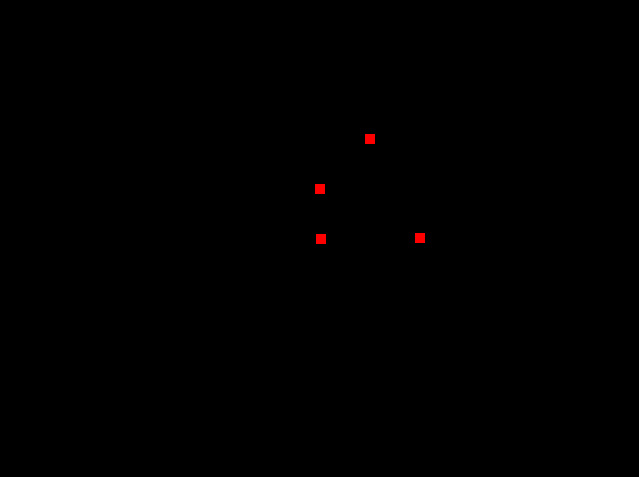
Seems like everything (except text) was working, right? That was until I decided adding new attractors. Turns out I was magically expecting the compute shader to get the updated attractors array even if I only initialized the buffer once with an allocated and then deleted array and never touched it again. Needless to say I changed that and could start to add attractors. As default, I added four attractors to the points:

Slight randomization makes the initial view less box-like

Keyboard and Mouse

A slight tangent to mention the key bindings:

  • Q: Closes the window
  • W: Increases delta time
  • S: Decreases delta time
  • T: Toggles text
  • R: Stops/starts particle movement
  • G: Changes mouse mode
  • V: toggles vsync
  • F: Makes the window fullscreen (This was working a bit weird at the ineks, it would turn the whole monitor into a blackscreen for a while.)
  • Mouse left button: adds a new attractor with the mass value on the screen to the clicked position or changes the origin to the clicked position.
  • Mouse right button: Removes an attractor.
  • Mouse scroll: Increases or decreases the to-be-added attractor’s mass

Particle Motion

This was the fun part. Before this, I added one+one blending to make the final result appealing. Initially dividing the velocity with dot(dist,dist) would result in a weird movement so for a while I had removed it. For a while I also had no limits for the delta time so the interesting visuals below were formed:

I then decided to use sqrt(dot(dist,dist)) and everything looked way more smooth, it was like a magical touch.

Particle Count vs FPS

I have an intel GPU.

Particle CountFPS (w/o vysnc)
10^34900
10^44400
10^51900
10^6220
10^722

Final Result

One thing I did not do was to make the resizing keep the proportions of the window, i.e. if the origin is at the middle it should still be in the middle of the window after the resize. This is not the case currently, the placements of the points do not change, they just wander to a bigger area. Video (sorry for the lack of video quality):

Categories
CENG469

Deferred Lighting

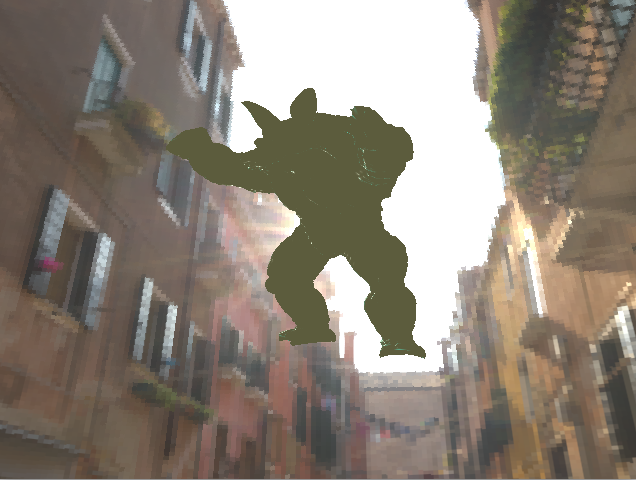
Hello! This is the blog for my deferred lighting homework. The homework mainly includes: cubemaps, hdr and tone mapping, deferred lighting, motion blur. This blog will not be in order of how I did things as I preferred to explain things in a cleaner order.

Cubemap and HDR

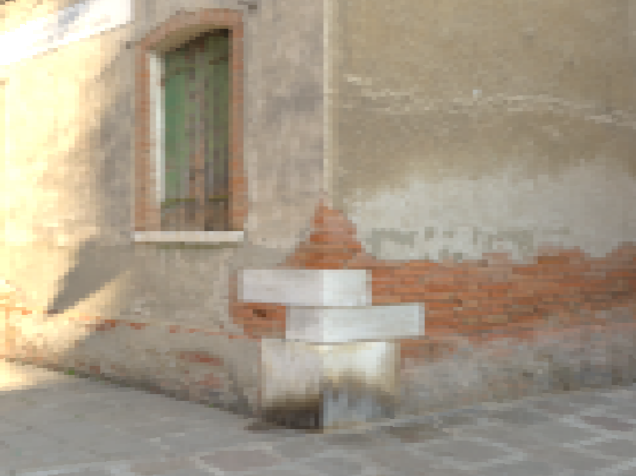
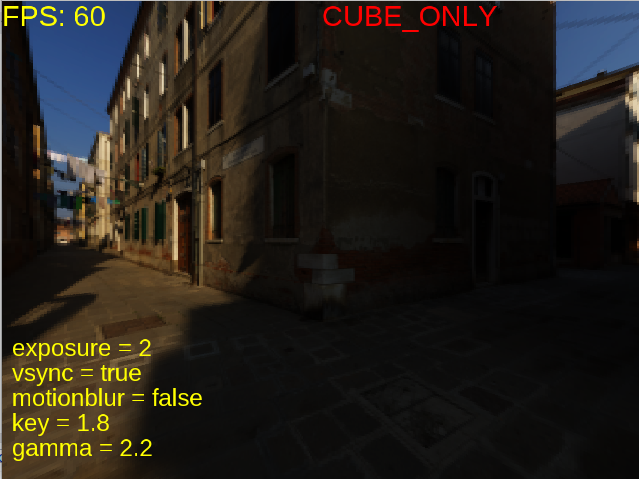
I started with the cubemap by writing a cubemap.obj file. I changed the 2d texture arrangements to 3d cubemap. This part was mostly seamless.

Initially, I did sigmoidal compression only to be able to see better. In this part, I also added the exposure and gamma correction variables.

Mouse Movement

I then moved on with the mouse movement. At first I tried to do it with two quaternions one for the right vector and one for the up vector. However, this did not feel like a first person camera at all, so I then replaced up vector with y-axis. This felt way more smooth. Though it did introduce a problem, if the user looks towards exactly 90 degrees up, the gaze vector shifts abruptly. This could be solved by limiting the gaze slightly but I did not have time left for that so that abrupt change is still present.

Adding Armadillo

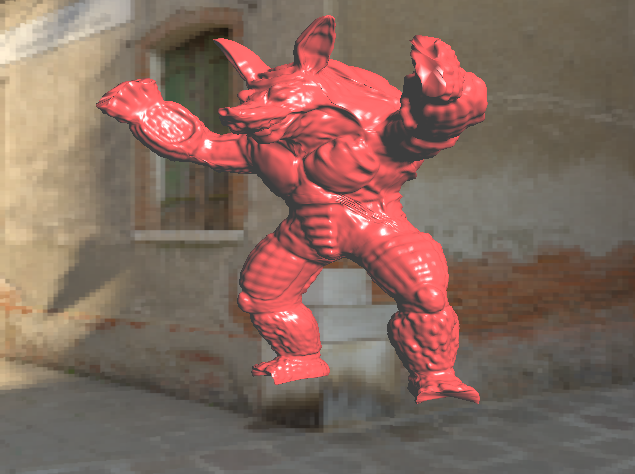
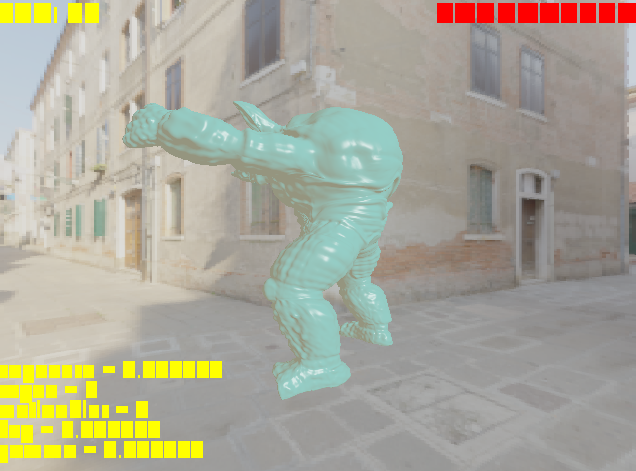
Adding armadillo without the deferred lighting was the easiest. In this part I arranged its location and the light location itself to make sure it was in a proper place where I could see. I did not choose to have one light, I actually thought about doing more after I was done with everything, but I was never done with everything.

Initial armadillo w/o deferred rendering
I tried to match my light with the sun in the cubemap

Texts and FPS

I then moved on to the text. I had some trouble making them visible on the screen because I forgot to bind its texture and had some blending issues. The below picture shows when I was unable to show the text properly, I then fixed it by enabling blending before writing my texts onto the screen.

For the fps, I initially recalculated it for every frame I would render. But that would make it flicker between 59 and 60 a lot so I then limited it to change each second.

Deferred Lighting

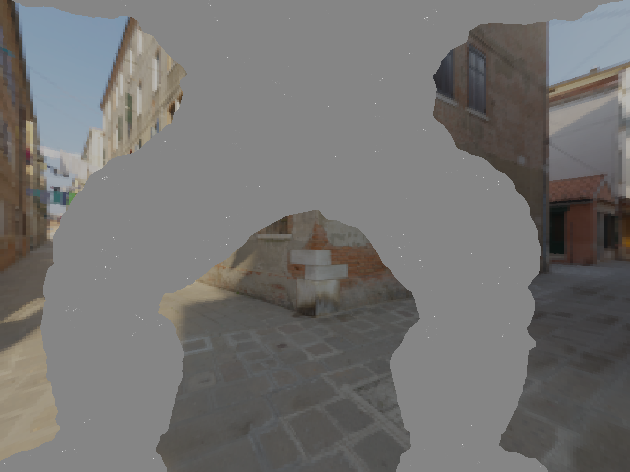
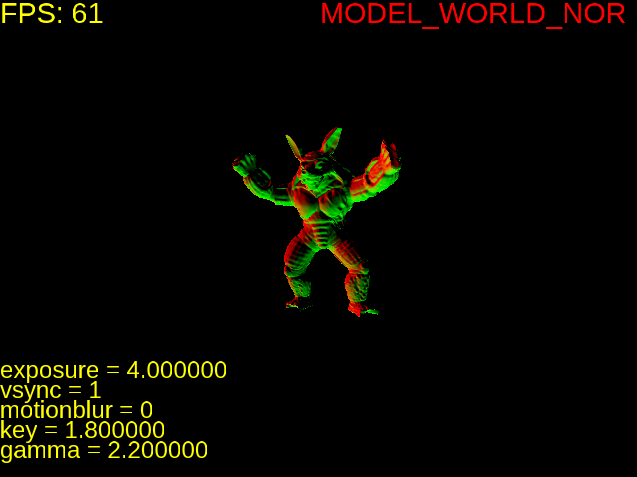
I died a little bit here. Though I followed both the video and the documentation for deferred shading, for a long while I could not render anthing properly. My quad just would not show anything and I could only see something when I rendered the quad as armadillo which is below.

I was so confused because I was doing everything in the tutorials and this took me around two days to figure out. I even rewrote the code for deferred rendering from scratch (which made my code in the end way clearer so I’m glad).

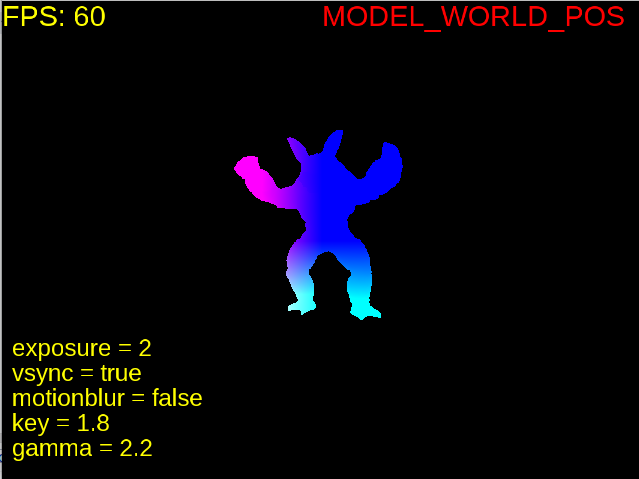
It was such a minor mistake, I was rendering my quad wrong. Originally, I was trying to render it like a face of the cubemap. But then I checked how the renderQuad function in opengl tutorials were coded and implemented that. Worked like a charm, I was on the verge of tears. Everything else was already ready so I could directly get the position and normals look.

Keyboard and Window

I then implemented some more minor things such as the key bindings and the window resizing. To fix the placements of the text, I called the function that calculates the perspective in the reshape function. I did not fix the aspect ratio to 1 so that the visuals would not stretch as shown in the picture below.

For the keyboard the buttons are as follows:

  • Q: close window
  • R: Toggle rotation
  • G: toggle gamma correction
  • V: toggle vsync
  • space: toggle fullscreen
  • +/up: increase exposure (I did not have a numpad)
  • -/down: decrease exposure
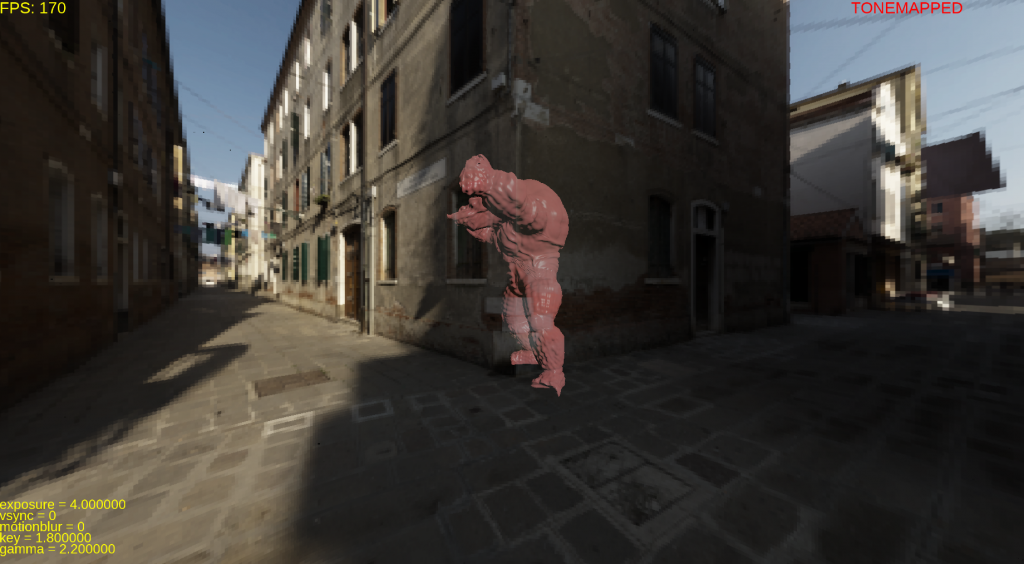
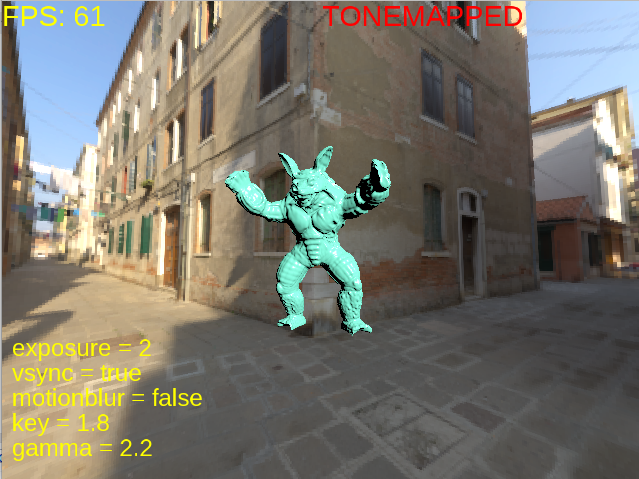
  • 0: TONEMAPPED
  • 1: CUBE_ONLY
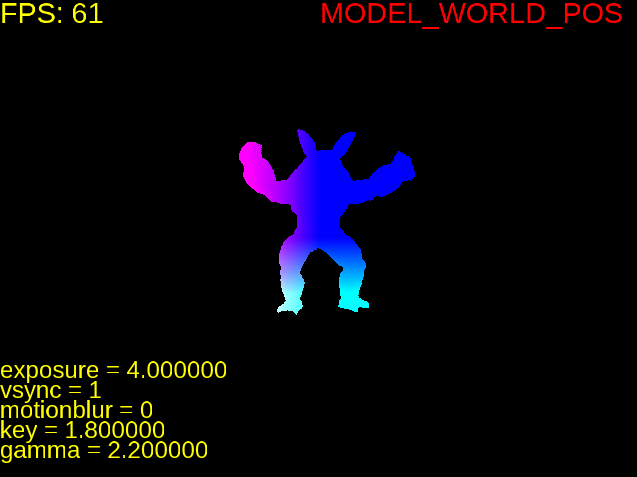
  • 2: MODEL_WORLD_POS
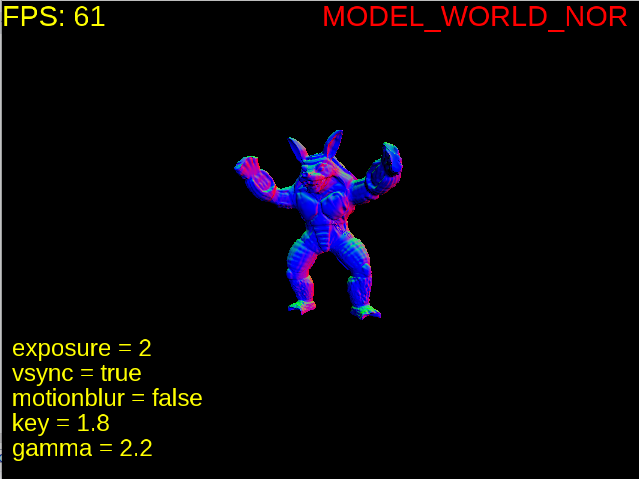
  • 3: MODEL_WORLD_NOR
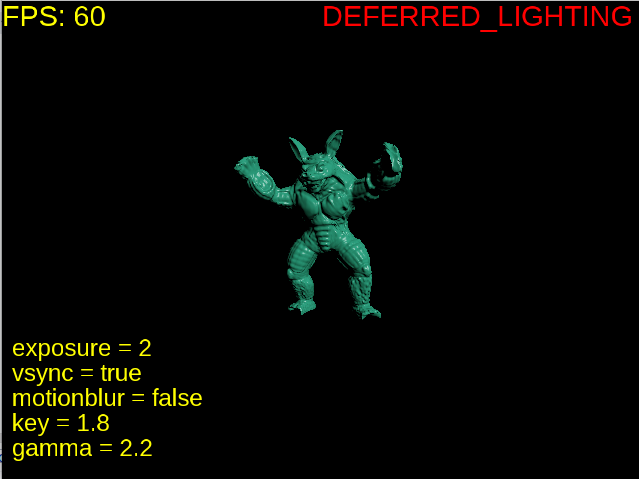
  • 4: DEFERRED_LIGHTING
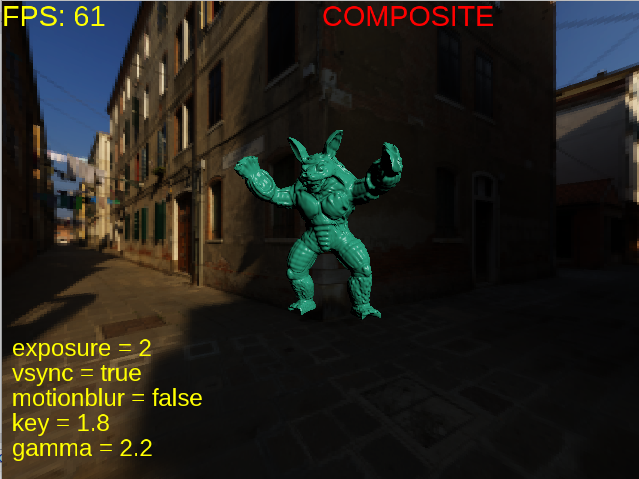
  • 5: COMPOSITE
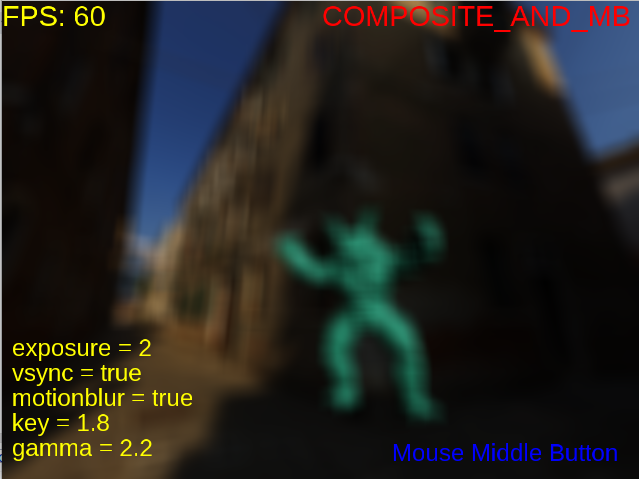
  • 6: COMPOSITE_AND_MB

Composite and Motion Blur

For motion blur, I took the function in the slides and arranged it so that it would blend the whole screen regardless of depth. I initially thought I would make it more optimized, but ran out of time and could not. Doing the motion blur itself was not challenging, but handling the composite structure that would do the blurring was. At first I tried to do it without an extra buffer, then gave up and added the buffer. For a while I swam in blits, clears, depths, enables and disables and buffers. I really should learn to first learn then implement because that would be way easier, but then again I cannot learn anything without implementing.

The final structure that worked for me:

  • Geometry pass on gbuffer
  • Arranging blending ( by making armadillo’s alphas 1.0)
  • Lighting pass on gBlurbuffer (used for both blurring and tone mapping)
  • Rendering cubemap on gBlurbuffer
  • Tone mapping and motion blur on default buffer

I then wrote the blur function to the final shader and only enabled it if blursize is bigger then 0. I found blursize by simply finding the manhattan distance between the past cursor point and the present and limited it to be maximum 20 (otherwise my poor laptop would freeze). The motion blur is not the best, though it would be very easy to make it more efficient with the code at hand, I just need to change how blurSize changes.

Tone Mapping

After handling motion blur, the base for the tone mapping was already ready. I initially tried to calculate the average log luminance manually by bringing the texture to cpu and multiplying. This reduced the fps greatly, so then I did what the pdf recommended. I created a mipmap for the texture I used with gBlurbuffer and calculated the average log luminance with the 1×1 mipmap. I love giving myself heart attacks so I forgot to give the key value as a uniform but instead wrote it as “in” and could not see anything at first.

Final

I fixed the floats and booleans in text because they were bothering me, added the pressed keys to the screen.

I learned a lot of things, even when I thought I had understood everything. It took longer than I expected but ended nicely.

I still did not download any application for screen recording , so here are some screenshots.

What is missing?

  • The abrupt change of gaze when we look up 90 degrees up.
  • Resize is not smooth (on my computer), though when I tried it on inek it was smooth but I did nothing to make it so.
  • Motionblur is not based on time but based on how many frames it will take for it to diminish. Not the best look in my opinion.
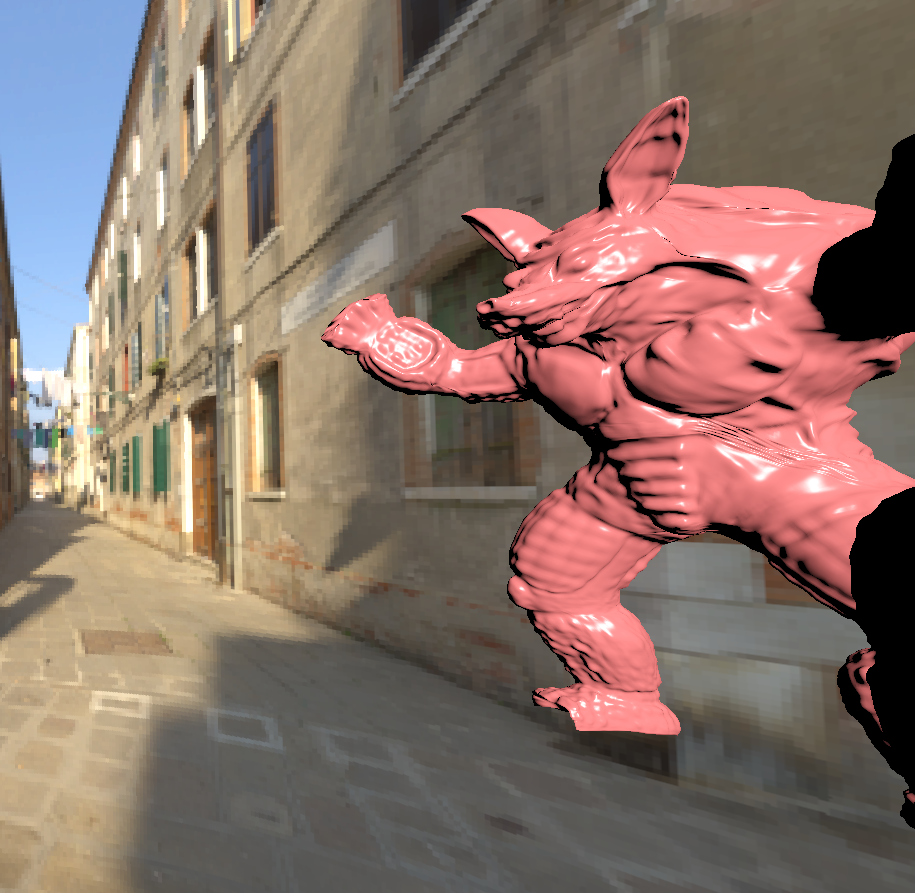
  • The armadillo started to get cropped after I implemented diffused rendering.
  • This is the most trivial one but texts are not aligned dynamically, so the writing for tonemapped just seems floating in air.
  • I was a bit confused about in which mode I was expected to do gamma correction, so now I just apply it in the TONEMAPPED mode.
Categories
CENG469

Flying Blinky

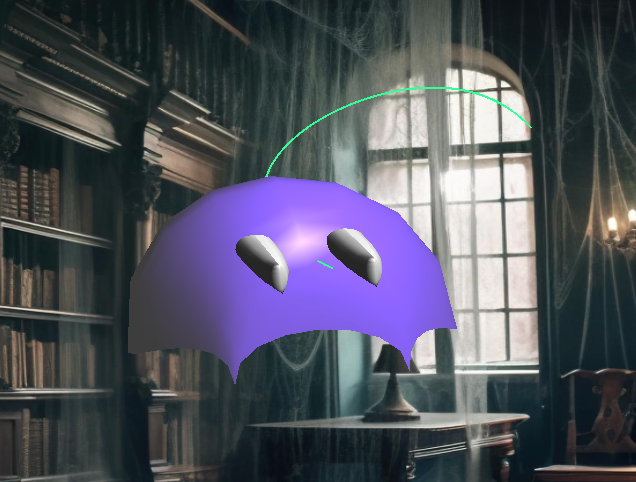
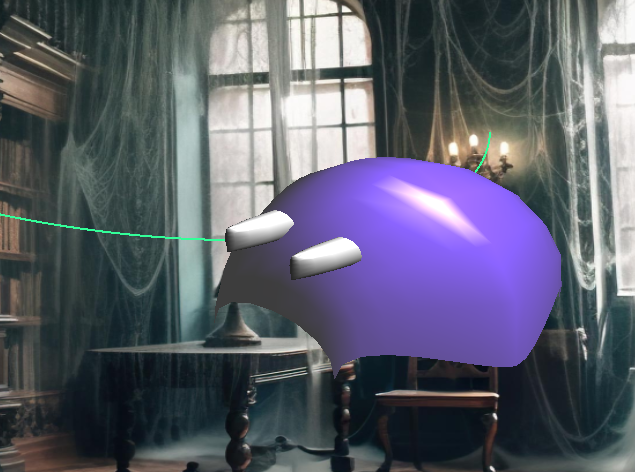
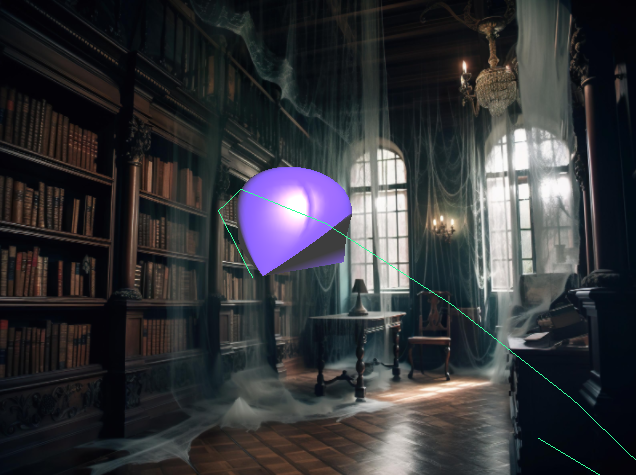
Hi there! This is my process of designing a ghost that roams in a room by implementing Bezier surface and curves. My progression was not linear for either of the parts and I jumped between them, and my pictures show that.

I used the template given by the instructors which helped quite a lot.

Part 1: the Model

I started with the design of the model. The first idea was to have a model that looks like the generic ghost (as a flying white cloth), but I somehow needed to make it a closed model, which meant I had to close the bottom. I also wanted the edges at the bottom to be spiky.

First design: Simple

I really liked my first design, but it made things too easy. It had only two surfaces and there were no surfaces needing C1 continuity. I wanted to learn both how to make the normals work at triangles that shares edges with other surfaces, and to ensure C1 continuity.

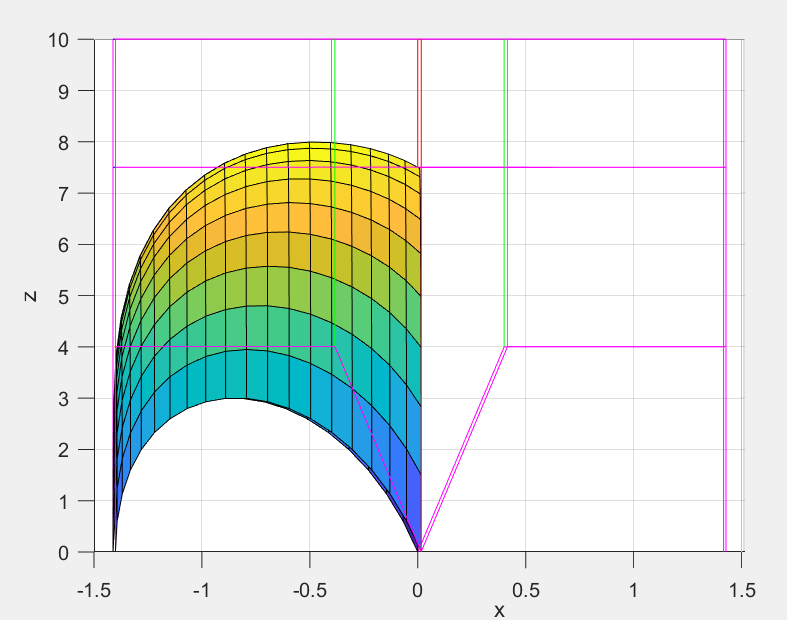
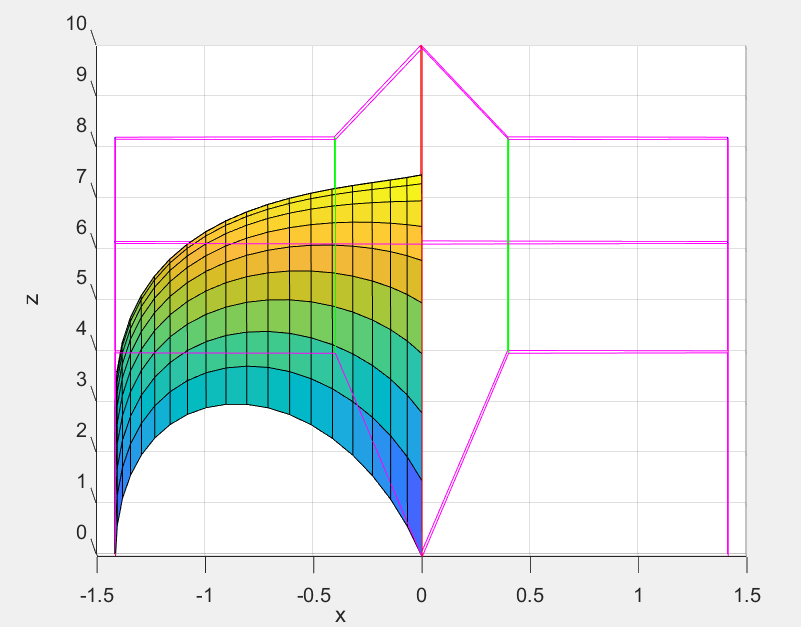
Second design: Jellyfish

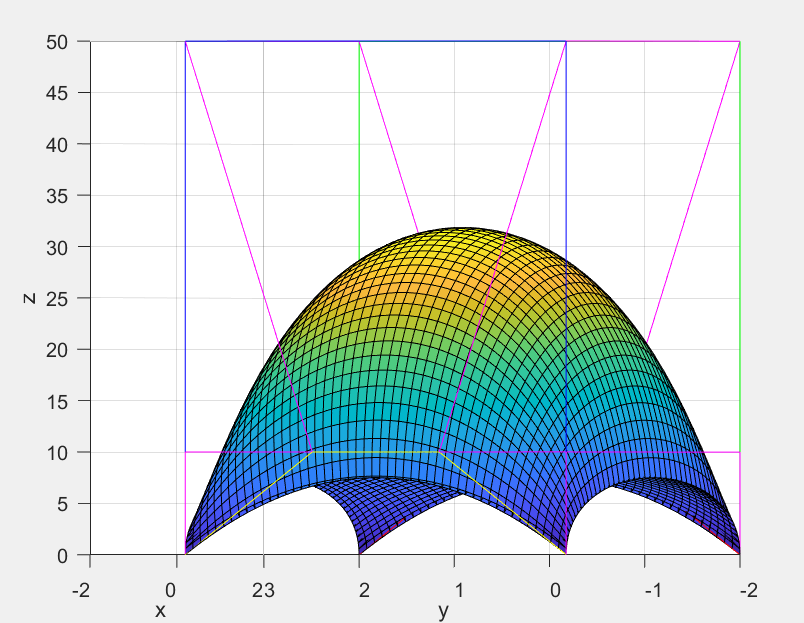
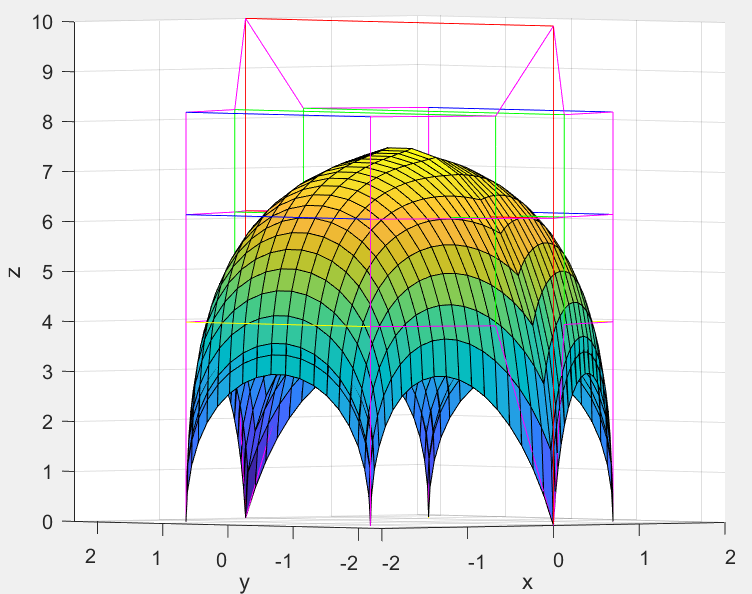
This design was the final version while I was designing at MATLAB. It is possible to see that it is not C1 continuous. I explain my process to fix that further into this part.

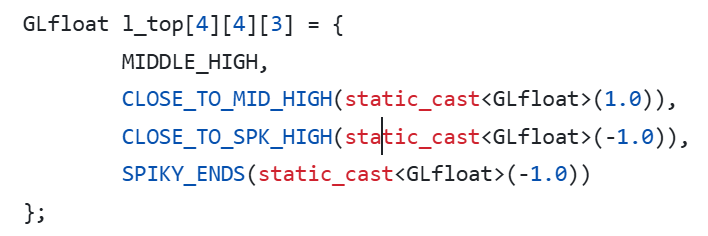
To show the model on OpenGL, I first defined the control points. To have a easily modifiable definition, I used macros and constant variables:

This way I ensured cleaner and less confusing looking surface arrays.

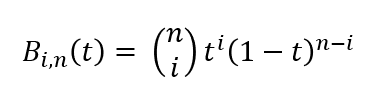
I then determined the vertices the triangles which will be formed with using bernstein polynomials with n=3.

Since my model was simple, for the duplicate vertices I found the ones which would overlap and did not add the duplicates to the vertex array. To make this process simpler, I used a [surface_count][sample_size][sample_size] sized vertice index array and stored the indices there to be used for the tesselation.

During tesselation, I directly used the index values from the vertice index array, this worked seamless. I then drew the faces with glDrawElements.

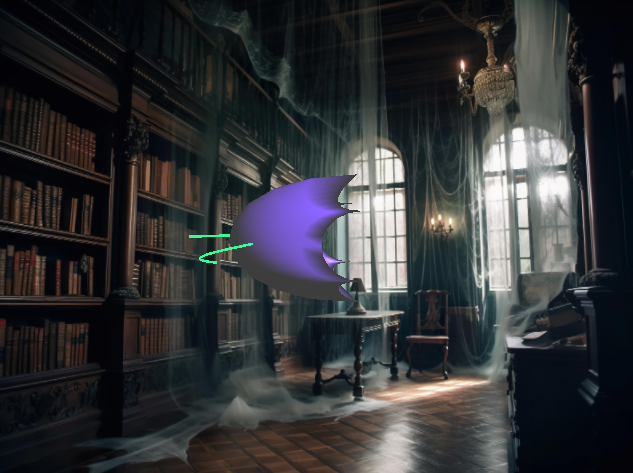
Initially, I did not add the normals. You can see it below, the surface seems flat.

Model On OPenGL: Single surface with no normals.

My first idea to find normals was to add 1/6 the normal of the every face to the vertices. However, this is not a fool-proof way as there is no guarantee that a vertex would share 6 faces all the time. The solution was easy: To add the normal for the every surface and then to normalize.

To add multiple surfaces, I used a different vao for each, yet same modeling matrices for all. This way all the surfaces would move at the same time.

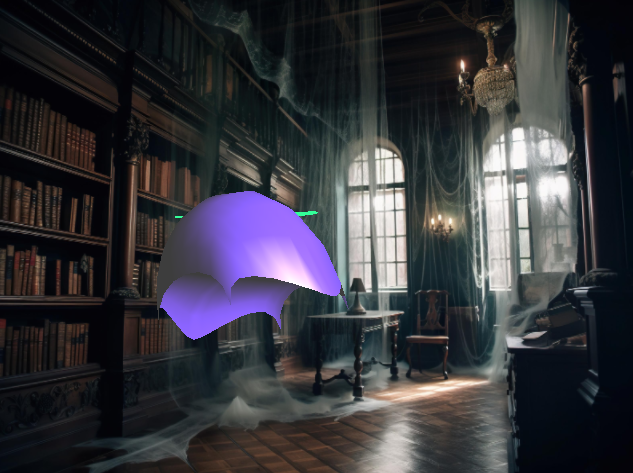
After seeing every surface on screen, I could see a very obvious mistake, the shapes were nothing like what I had designed.

Model on OpenGL 2: Multiple surfaces wrong vertex function

The problem was before tesselation, while determining the vertices. I was looping from i=0 to i<3 instead of i<4, a very simple yet hard to catch mistake. After that, it started to look a lot more like my model. However, the discontinuity was way more obvious. I could make it less by changing the variables I had defined earlier but could not get rid of it entirely.

Model on OpenGL 3: Nearly correct vertex function, before C1 continuity.

Then I realized that my model by design prevented C1 discontinuity. Initially, I was very confused as to why the top was arching even though the control points were colinear there.

Initial
Higher middle arch

So I tried to increase the height of the middle arch, this did looked ok at MATLAB, but the flaw was still very obvious at OpenGL. I later realized the control points at the bottom were not colinear, in fact they were far away from being colinear. This meant I could not have a nice arch on the sides, but sacrifices were made and I made them colinear. This indeed solved my continuity problem.

Then, I was faced with another issue. This was very obvious and easy to fix. I realized I was summing the normals even at the very sharp edges and decided to keep the duplicate vertices at the sharp edges.

Fixed C1 continuity
Duplicate vertices at sharp edges

At the end, my model was finally presentable. But I wanted it to have at least a resemblance of a face, so I needed eyes.

For the eyes, I added two same surfaces without modeling on MATLAB ( I drew by hand). They are elliptic tubes. I defined new shaders for them since I wanted them to be a different colour than the ghost. I changed their diffuse coefficient to choose their colour as my liking. For testing purposes, white was easiest to see errors.

I, again had to fix the duplicate vertices by hand since I did not write an automatic code for it. Thanks to my vertice index array, such requirements are easy to add and just needs a small if condition.

Duplicate vertices present
After eliminating duplicate vertices

Then I put the eyes back into their sockets 🙂 I also slightly tilted the eyes to better fit the shape of the ghost.
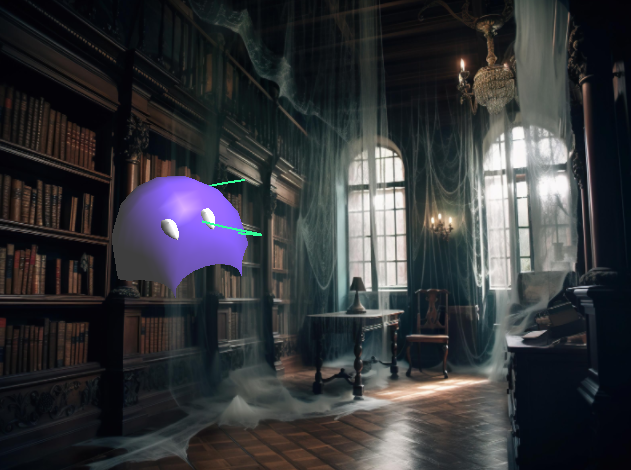
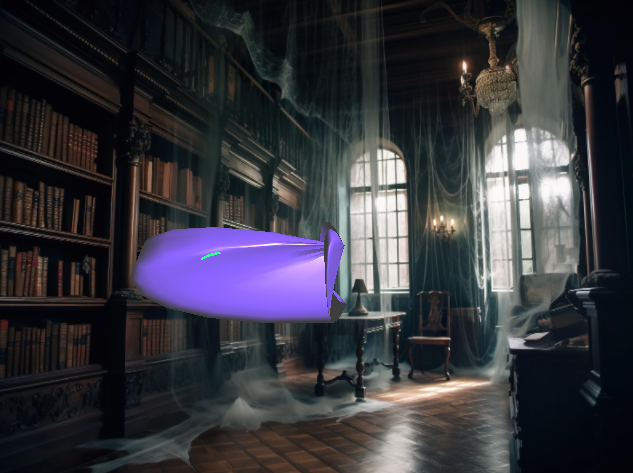
Final version of the model

Part 2: Curve

For the curve, there were several steps I needed to do.

First, I needed to determine the control points. I preferred to randomize them completely for the model to stay within the window boundaries. However at first, it was far from randomization, so I determined certain ranges. The curve now would be within any box I determined.

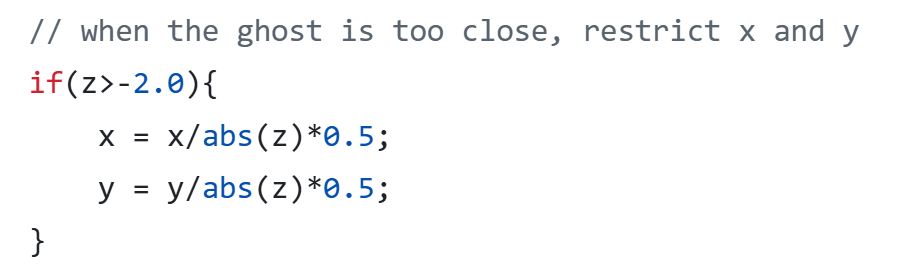
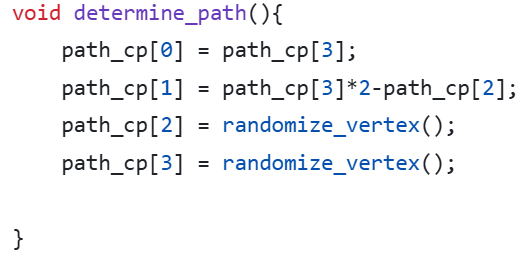
I liked the idea that the ghost would come quite close to the camera, but this meant that I needed to restrict x and y ranges quite drastically. I did not want to give up on any range of the coordinates, so I did the modification below:

This works because my z values are always smaller than -1.

After the control points, I again sampled several vertices on the curve using the same Bernstein polynomials. Initially I chose 10 as the sample size, which was not smooth at all.

Curve: Small sample (before adding the ranges to the randomize function)

Then I increased it to 100, which allowed for the ghost to travel quite fast with a very smooth movement.

The curve also needed to be static and not move together with the ghost. For this purpose, I separated the model and the curve’s modeling matrices and made sure the curve modeling matrix never changed after initialization.

Since the curve needed to be green, I defined new shaders for the curves and set the diffuse reflection to green. I also did not like how thin the curve was, so arranged the width to be 2.0. This then caused the wireframe object (when wireframe is enabled) to have bold lines as well, so I made the width to its original value, 1.0 before rendering the wireframe object.

Part 3: Movement

First, the ghost needed to follow the path. I simply updated its coordinate to the next vertex in the curve by keeping a global path index. When the path index was at the end, I regenerated the curve with C1 continuity as below:

Everytime I regenerated the curve, I found the vertices on the path and set the path index to 0. This also required an update at the vertex buffer.

Then, the ghost needed to keep doing the roll movement while looking towards the way it is going. I defined an up vector, which is initialized to (0,1,0), and a gaze vector which is,

I then found the u from the cross product of direction and up, and recalculated up by taking the cross product of the new u and direction. This sometimes causes the ghost to turn upside down, but there are no abrupt orientation changes.

I put the created orthogonal basis into a matrix and put right before the final translation matrix which translates the ghost to the position of the current curve vertex, and right after the 90 degree turn function (which I had to add because apparently I designed my model sideways). I fixed the pitch rotation to none and left the roll quaternion rotation in the sample code.

At last, I had to put the curve to its center. Why? Because if I did not, then when it needed to rotate to look at the direction, it would rotate around an imaginary origin. I changed the translation matrix and lowered every index in the original 16 control points of the every surface.

Part 4: Keyboard Input

Wireframe: When the user presses W, the model is shown as wireframe. I defined a “wireframe” flag which controls if the drawing function calls the object solid or wireframe.

Show path: The path disappears/reappers when P is pressed. Again, I defined a flag that determines if glDrawArray for the curve is being called or not.

Stop moving: When space is pressed the ghost stops/starts moving. The code skips every update function if the corresponding flag is not set.

Finalizing

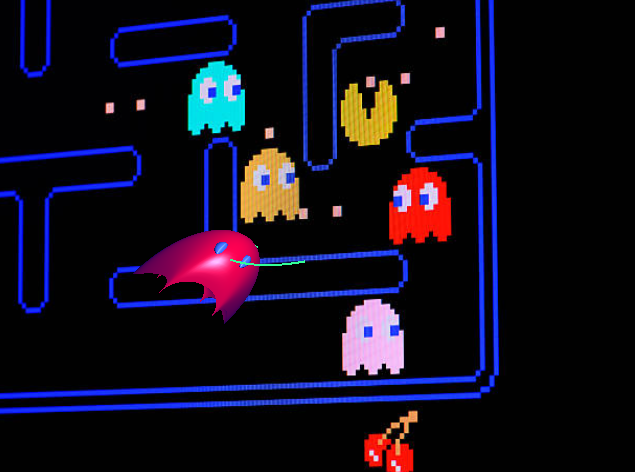
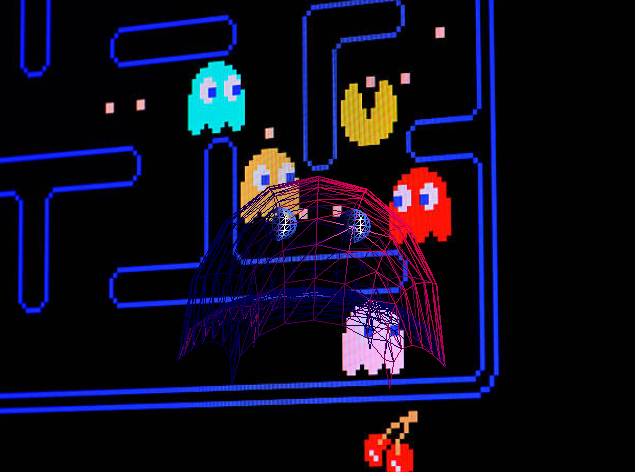
At the end, I looked at my model, and saw pac-man ghosts. If I had started with this intention, I definitely would make it look more like them. After this realization, I changed its colour to a more reddish colour to make it look like the red ghost, Blinky. Its eyes are now blue to match the ghosts. Moreover, I added a 3D-ish pac-man background and made the ambient lighting blue to match the atmosphere.

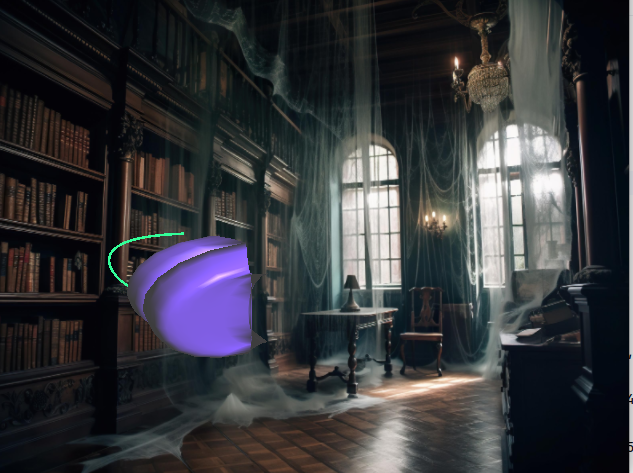
Final: Solid with curve
Final: Wireframe without curve

This was a very fun process, where I had to learn to incorporate:

  • Bezier curves and surfaces with Bernstein polynomials
  • Tesselation
  • Both C1 and just C0 continuous surfaces
  • A moving and a static object in the same scene
  • Moving along a path
  • Using quaternions and rotation matrices